> For the complete documentation index, see [llms.txt](https://docs.ixhello.com/llms.txt). Markdown versions of documentation pages are available by appending `.md` to page URLs; this page is available as [Markdown](https://docs.ixhello.com/ixhc/connections/google-oauth-2.0-integration.md).
# Google OAuth 2.0 Integration
### Overview
Google OAuth is an implementation of the **OAuth 2.0 protocol** that allows applications to securely access Google services on behalf of a user without requiring their password. It’s widely used for:
* **Sign in with Google** (authentication)
* Accessing Google APIs (authorization), like Gmail, Drive, Calendar, etc.
### Why use Google OAuth?
* **Secure Authorization**
* Apps can access Google APIs (like Gmail, Drive, Calendar) on behalf of the user without storing their credentials.
* Uses tokens instead of passwords, reducing security risks.
* **User Convenience**
* Enables **“Sign in with Google”**, so users don’t need to create new accounts or remember extra passwords.
* **Granular Permissions**
* Apps request specific **scopes** (e.g., read email, view profile), and users explicitly approve them.
* **Standardized Protocol**
* Based on **OAuth 2.0**, an industry-standard protocol for authorization, ensuring interoperability and security.
* **Improved Security**
* Supports short-lived **access tokens** and **refresh tokens**.
* Reduces phishing risks since passwords are never shared with third-party apps.
### **Pre-requisites:**
1. **An active Google Account**
You should have an active Google Account. If you do not have it, you can create an Google account at
2. **An iX Hello Account**
For steps to create an account, follow the steps [here](/ixhc/general/ix-hello-create-account-original.md)
#### Base URL, Token URL, Client email, Private Key Permissions & Authentication
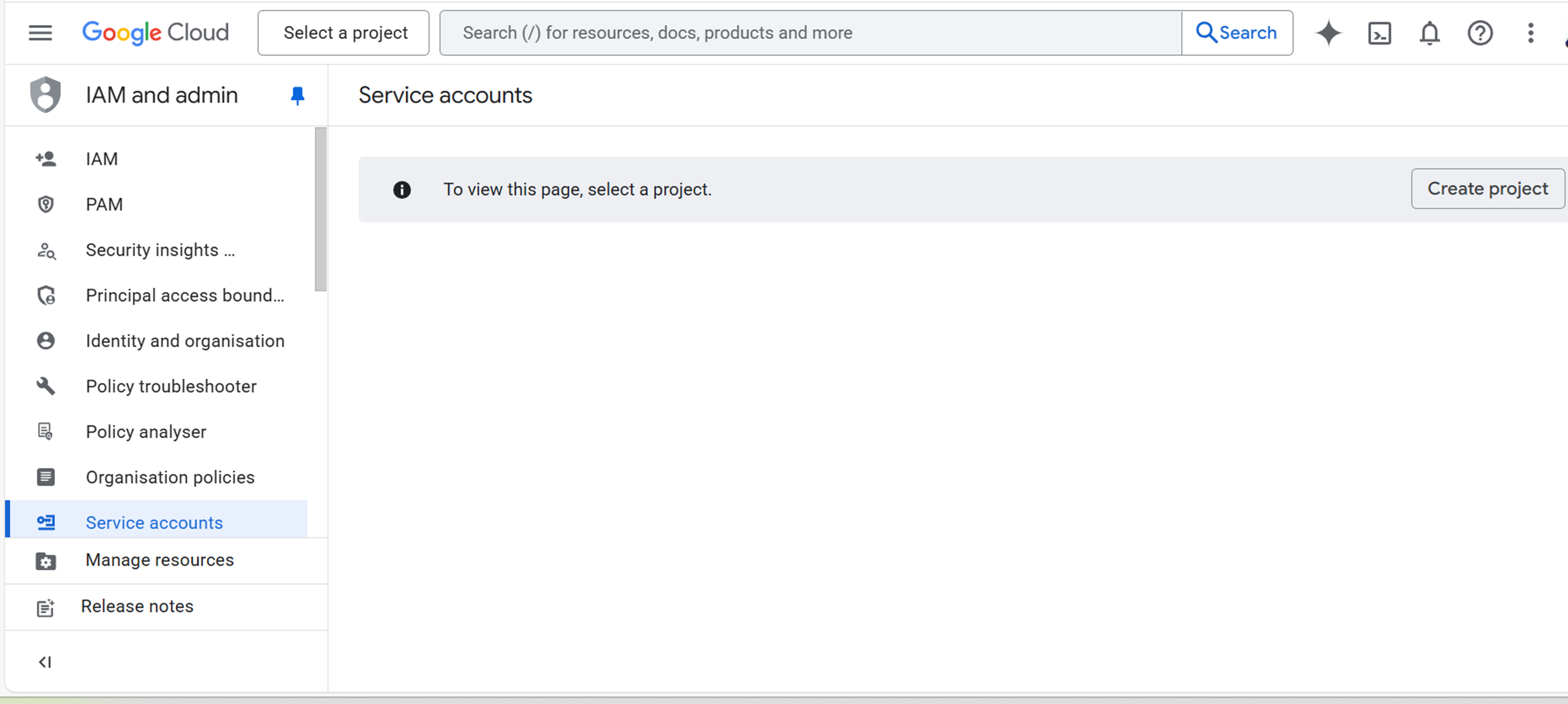
Using the console ID login to you Google Account and you will be landing on the Google Cloud Page.
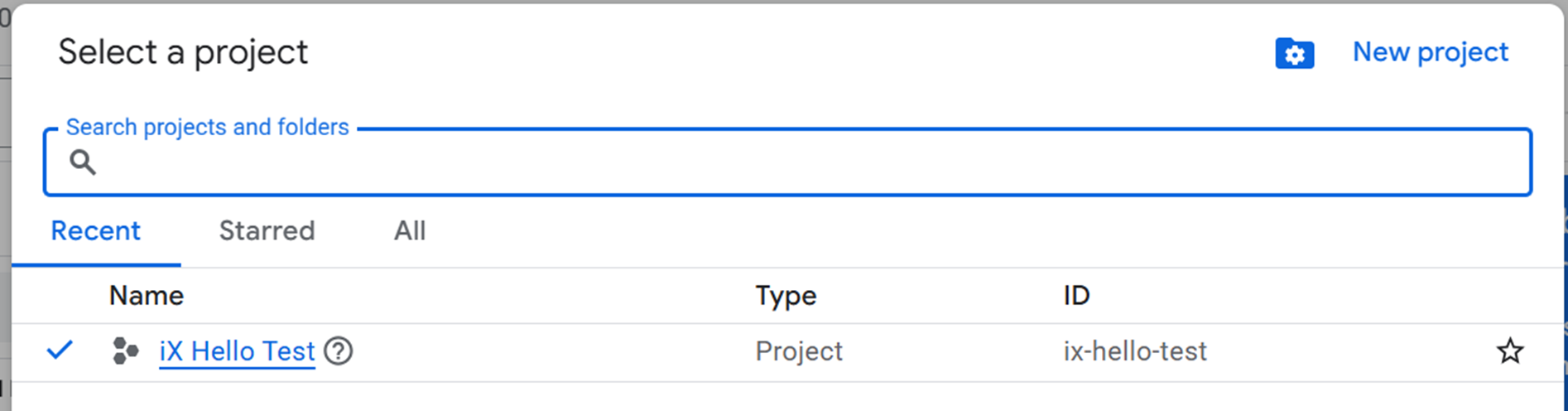
Lets create a new project by clicking on "Create Project".
Enter the Project Name and Location, then click create.
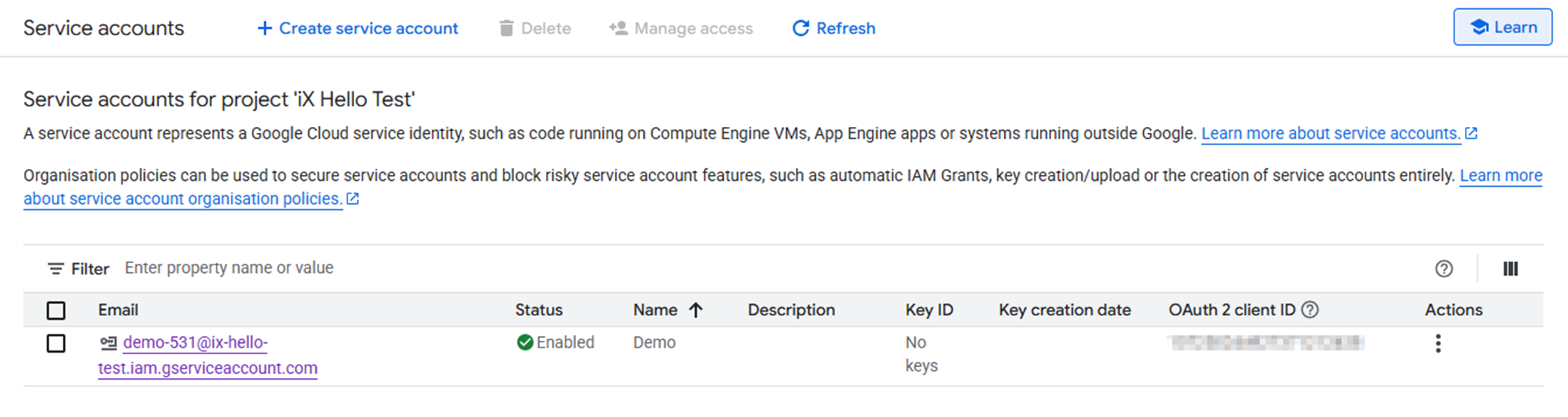
Now let's create a Service Account by clicking on Service Account menu and then click on option Create Service Account.
{% hint style="info" %}
A service account represents a Google Cloud service identity, such as code running on Compute Engine VMs, App Engine apps or systems running outside Google. [Learn more about service accounts. ](https://cloud.google.com/iam/help/service-accounts/overview?authuser=1\&hl=en_GB)
Organisation policies can be used to secure service accounts and block risky service account features, such as automatic IAM Grants, key creation/upload or the creation of service accounts entirely. [Learn more about service account organisation policies. ](https://cloud.google.com/resource-manager/docs/organization-policy/restricting-service-accounts?authuser=1\&hl=en_GB)
{% endhint %}
Fill in the necessary options:
|
Service account name | Demo |
| ------------------------- | ----------------------------------------------------------------------------------------------------------------------------------------------------------------------------------------------- |
|
Service account ID | This is shown to users when they're asked to demo-531 |
| Email ID | |
| Click | on Create and Continue |
| Role | By default, you don't need to assign any role. You can add it later if necessary. Additionally, to test Vertex AI, you might need to add a Vertex AI user role, or you can choose an Owner role |
| Click | Continue and Click Done |
{% hint style="info" %}
**Vertex AI** is Google Cloud’s **machine learning platform** designed to help developers and data scientists build, deploy, and scale ML models efficiently. It brings together all Google Cloud AI tools under one unified environment.
* Simplifies the **end-to-end ML workflow**: data preparation, training, deployment, and monitoring.
* Provides **managed infrastructure** for training and serving models.
* Enables **custom models** and **pre-trained models** for tasks like vision, NLP, and tabular data.
{% endhint %}
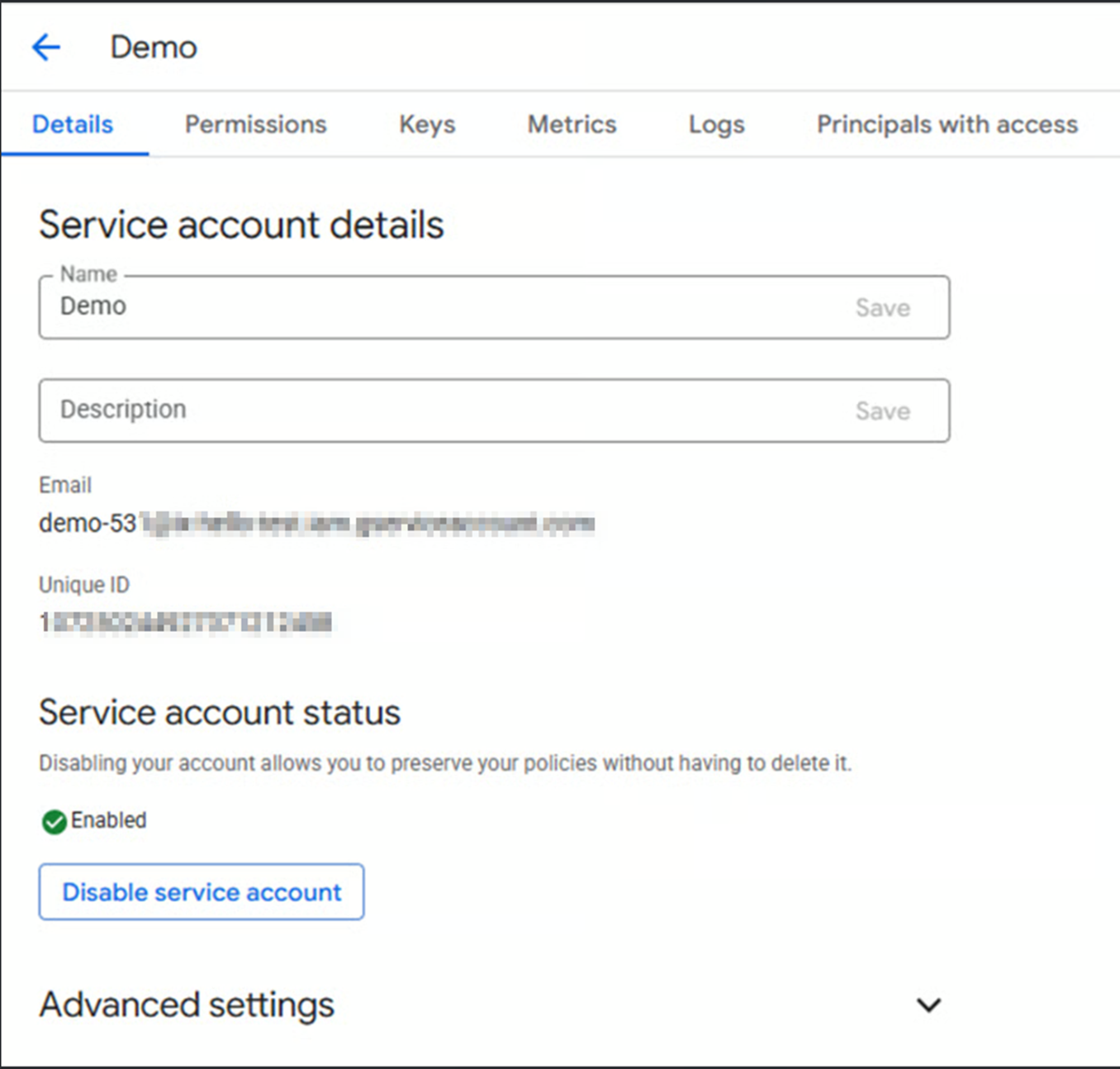
Click on the service account to view the account details.
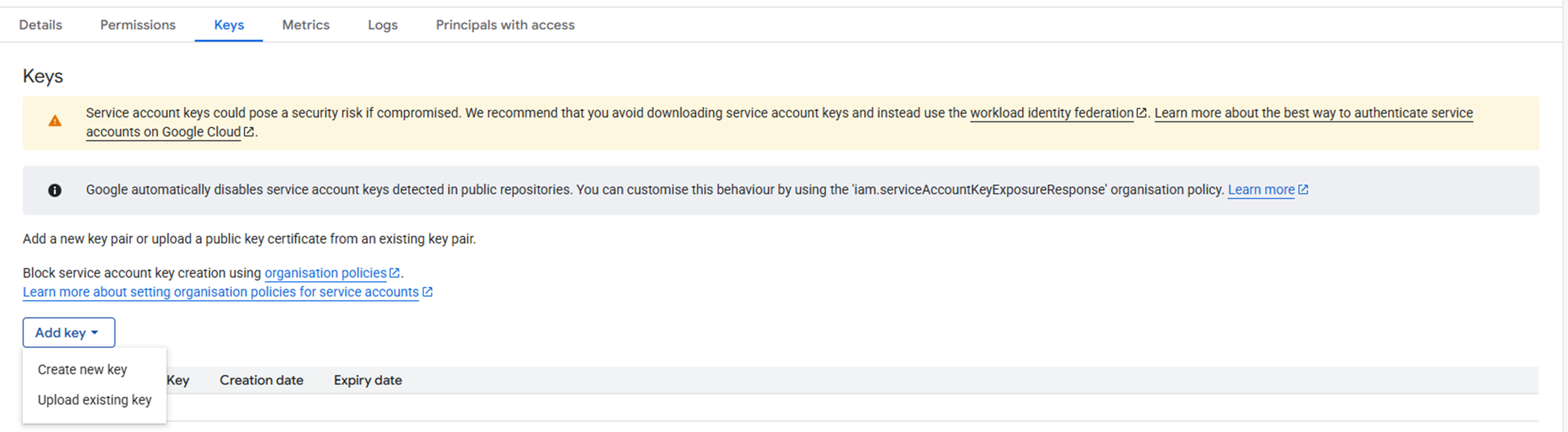
Then, select the "Keys" option. In the "Add Keys" dropdown, choose "Create new key" to generate a new key, or select "Update existing" to modify the current keys.
When you click on "Create new Key", you will see a pop up asking you to choose between two formats, JSON and P12. Choose JSON and click create, the JSON file will be downloaded. Which is the Private Key and it's used while establishing the connection between the google and ixHello.
#### Sample attached:
```
{
"type": "service_account",
"project_id": "ix-hello-test",
"private_key_id": "1a5d------------------------------",
"private_key": "-----BEGIN PRIVATE KEY-----\nMIIEvQIBADANBgkqhkiG9w0BAQEFAASCBKcwggSjAgEAAoIBAQCnzvhFHkwTdtca\nFklagLWT22hMqJuIXM5TctL3ac6fhzN7lZN24XGfba0QnpeTuu10gaEyeiFmG2HM\nuq5vcDWABNuHW4kj4mSQhUYs+NOauCUYif8EzQ070wm48RKl9BYvIxXIO3ZnW0AV\nKml4jVCwTD+a1zWAH9LQGMTKc4FYks6m4AM0nioGpN+b9ODRUd6i52B+N611GwHw\nmiHqKfAqJuUrpAiYyI4VqY9wpQIV6dWCvwyurFnnZxaPiqP3NaS5fWQHhosHMymH\nsDHnh8sjM6j6Aak9aK4qX8lmbWlaXxhf7LGVjoLnuq5r/ddmK93nw5hIZE9zLdlO\naXIGPCj/AgMBAAECggEAHdDf+wP1l3XDpW51TR/WY3WWFBzXOcTnohsiUfSaUm0G\n4DwE7hgDhMTLfcr3+rc5bryDpEDgA1D1MRewW7uPvfXe/a9tcBNPNACCJgZ2LqTu\nbmxChBtc8Ra/wP0Qh60Vbf2pZqDuGlIz0i7te458Wj7KBFydtGyzG+dyu9gHEPIH\nAFzYkgLjfxvCe70ofiULeGPi1VTL1PUi6kpEPE1uIjdVccn4zR8q5b3K536MpTii\nPKVVM0XFslHGGis8ZAWcRRqCnhhXWurSnKNYAKSp1S0VK23gRDaJjAUfKpLe9AfA\nK7Dof2HSUv2dlK6NLNMgm8VAJURljm8+Lh1Rfs/okQKBgQDbfLDM68QtJXWMy6bE\nzlfBiLcjYdSnMtTAHzBHTWg7pqNsUg1faHwMLb38yhlPo3+rTBSzn4tW1ZO86S/V\nAf0OJO2eICys/G4vfPtWFvj6QGTvladMWo5Sr7jBy9xWCM89eo6AEfegHa7XIBZP\n/PKnhmK2pv3nYWvXHyN3jBD/bwKBgQDDuXCKdLNkxJ8Gfnx4S+NhCUZAXB4OGhC0\nkYLcZD3U7UV1/T/aRG0tGixCaU77wnzR3La6ho+g2e4phAd/EjJfAmxzLFnHz1dR\nFz/rWNviM8/OCQnwUvfHLjgc9/ISMEXRQcoiQBQd5iepNc6UXNm5QdKWdCH7tfn3\nxy/qGIancQKBgFx3qZyLbzh94YoReg7Lx5jXWiBj5M0T0yGlghdn+xO2Xn8SCmQ5\nhpky5CmNkyBEB1NJWCdcfb11eSpLK0WX8t50nE7Tyz6NknYbN1/LidUUL/HnoHXA\naNlZAoNSuV7dk0GZUlOOPj6Mgs5KzFuiezAso4XD0JAcMOyOR8jjj32tAoGBAIKQ\nx1GlzjKPs+I6KMB7J4EJFdNDYE1Z+ADs/RYWzOSpL+go/BqYARjQV+wpoiXytR+u\nlDtUHqZYGzeYuwN62R1mWYBveqj/WSlgUCSoz25Tz/GLOBUY0/AMliRFBzg4+apB\nsB0vD/xuF9EacueoFRovndL+P9lRqSIwv3bzy4gRAoGAd2l1lf2xQ9ZDJMGotiRg\nl3UJdiAslokSASQflsI4ug0CNXz8JHvHahiah+yuyzcJ+ihjgKO72X92nVoFSG6R\nqo7YRQZPtQA7Ys06noRPX6iWu+WBB/m9lCkLAamDZ4rQ60ElLq4Ft6LmmBdBQA2s\nHhcSjFEAGkxK59zFOzB+ymI=\n-----END PRIVATE KEY-----\n",
"client_email": "demo-531@ix------------------------------",
"client_id": "107-----------------------",
"auth_uri": "https://accounts.google.com/o/oauth2/auth",
"token_uri": "https://oauth2.googleapis.com/token",
"auth_provider_x509_cert_url": "https://www.googleapis.com/oauth2/v1/certs",
"client_x509_cert_url": "https://www.googleapis.com/robot/v1/metadata/x509/demo-531%40ix-hello-test.iam.gserviceaccount.com",
"universe_domain": "googleapis.com"
}
```
### Enable the API's and Services
To enable APIs and services in Google Cloud:
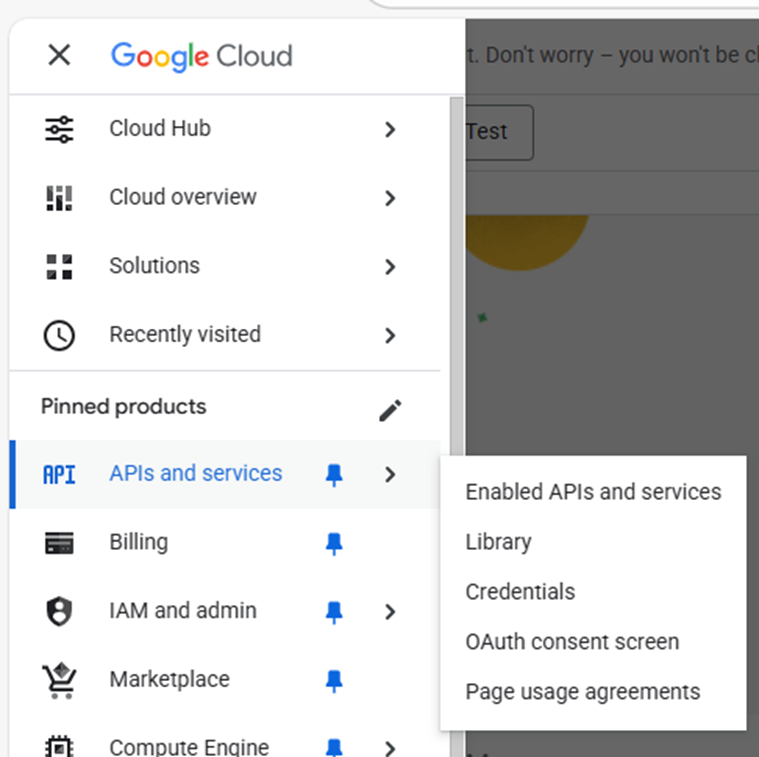
1. Click the **Navigation Menu**.
2. Hover over **APIs and Services**.
3. Select **Enable APIs and Services**.
To enable a Google product, follow these steps:
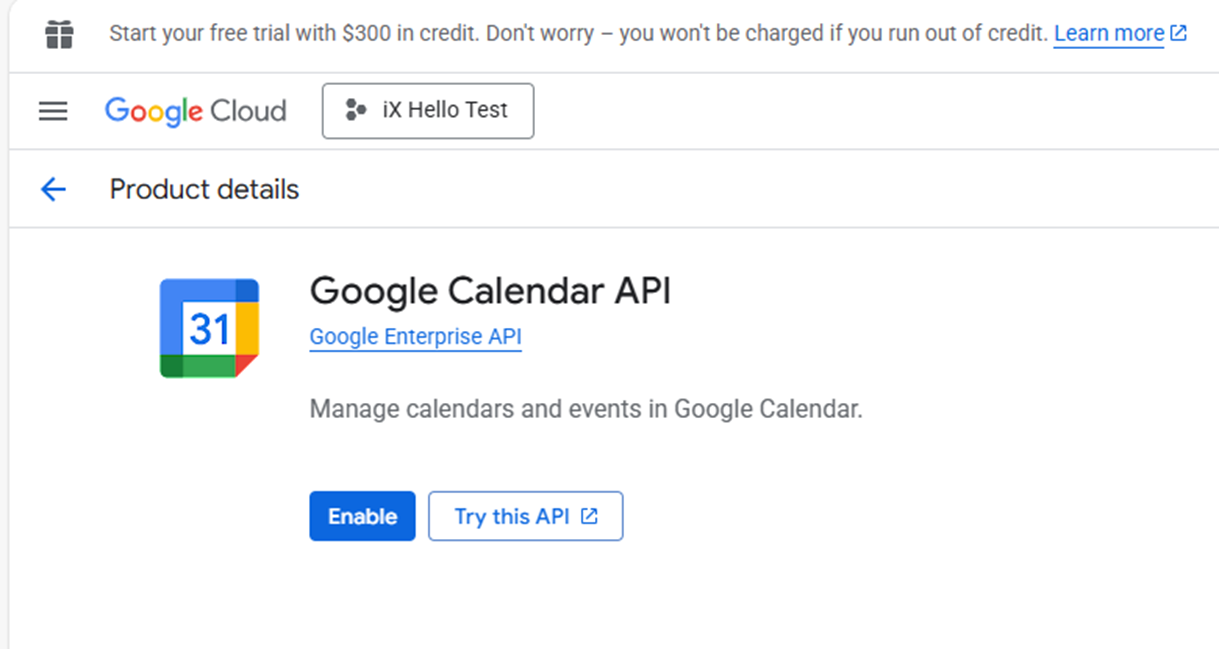
1. Use the search bar to find your desired product, e.g., Google Calendar.
2. Click on the product.
3. Click the "Enable" button.
4. Similarly, you can enable the Vertex AI API as well
### How to generate the Scope
Visit the [Google API scopes page](https://developers.google.com/identity/protocols/oauth2/scopes) to choose and implement product-specific scopes.
Select from the list of available scopes for example:
* `https://www.googleapis.com/auth/userinfo.email` → Access user email
* `https://www.googleapis.com/auth/drive` → Access Google Drive
* `https://www.googleapis.com/auth/calendar` → Access Calendar).
The most general scope for accessing Google Cloud resources is:
```
https://www.googleapis.com/auth/cloud-platform
```
**Purpose:**
* Grants **full access** to all Google Cloud services and resources that the authenticated user has permission for.
* Often used when your app needs broad access across multiple GCP services.
### Generate Base URL: Google Calendar
{% hint style="info" %}
Input:
You can generate URLs based on the products you've chosen to enable. In this example, we have enabled Google Calendar.
{% endhint %}
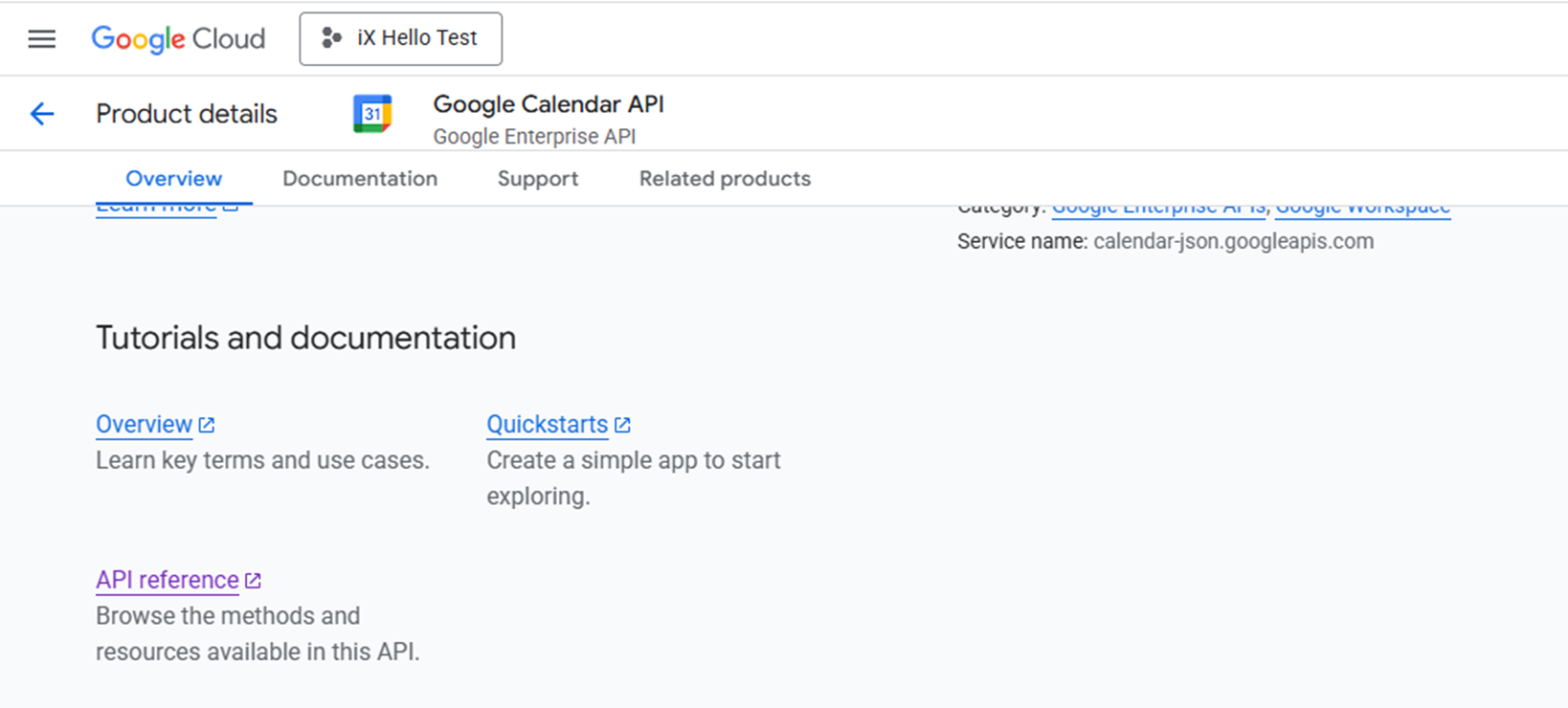
To enable the Google Calendar API, follow these steps:
1. Navigate to **API and Services**.
2. Select **Enable API's and Services**.
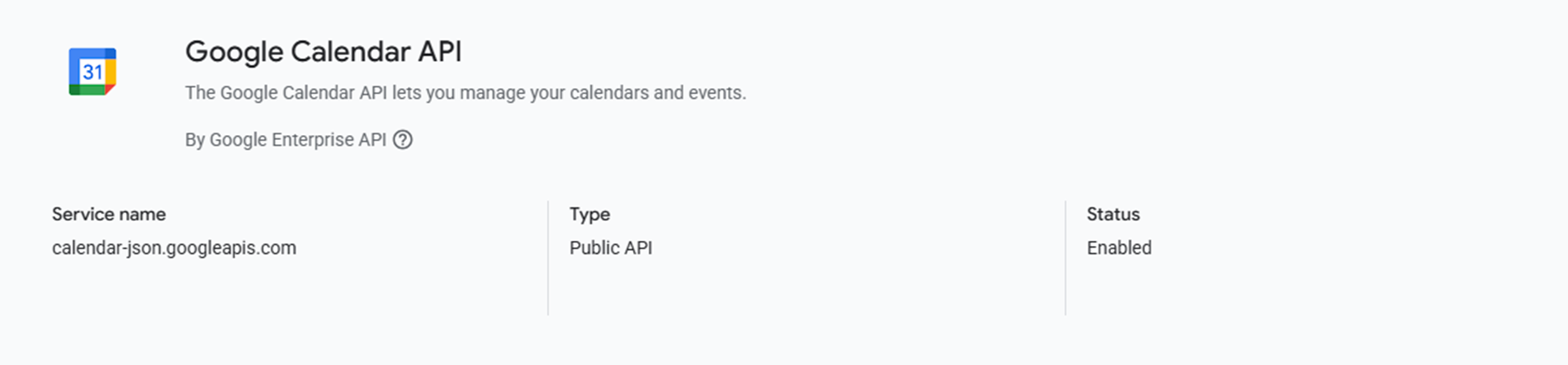
3. You'll be redirected to the Google Calendar screen.
4. Click on **API references**.
{% hint style="info" %}
#### Accessing Google Calendar Events via Google Workspace
**Base URL for Google Calendar API**
* Generic Base URL: `https://www.googleapis.com/calendar/v3`
* To view iX Hello events:\
`https://www.googleapis.com/calendar/v3/calendars/dfc32f027ab318a2c4c4c013ff4edbf972f16e15cdbeeada14a615a5ef626ae9@group.calendar.google.com`
**Steps to Obtain Calendar ID**
1. Login to Google Calendar.
2. Choose existing calendars or create a new one.
* For a new calendar: Enter Name and Description, then click "Create Calendar".
3. Find and copy the Calendar ID.
4. Update the base URL with the Calendar ID.
**Sharing the Calendar**
* Share the calendar by adding the service account client email via calendar settings.
* This allows viewing all iX Hello events in Google Calendar.
{% endhint %}
### **Setup connection to Google Account in iX Hello**
Using the information we have generated, let's proceed and establish the connection with iX Hello.
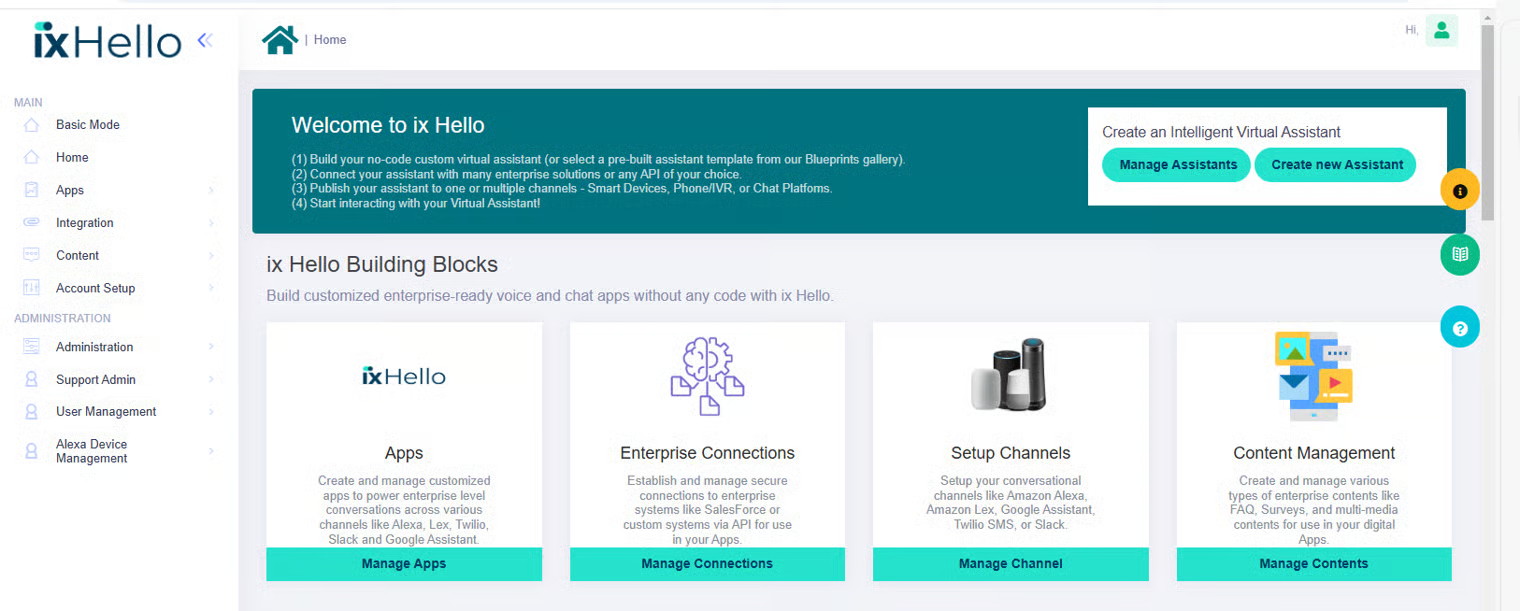
* Login to the iX Hello portal at
* Click on the Studio Mode link at the top of the page:
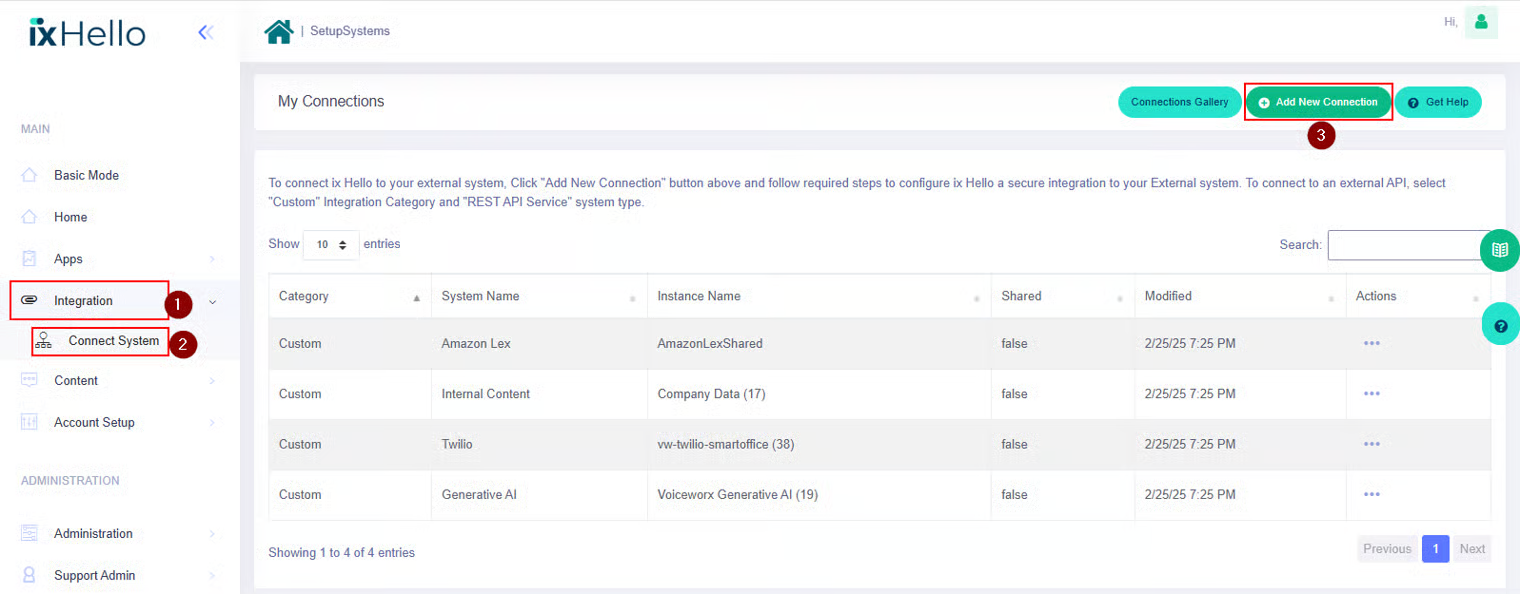
Browse to: **Integration** > **Connect System** as shown below. Click **Add New Connection**.
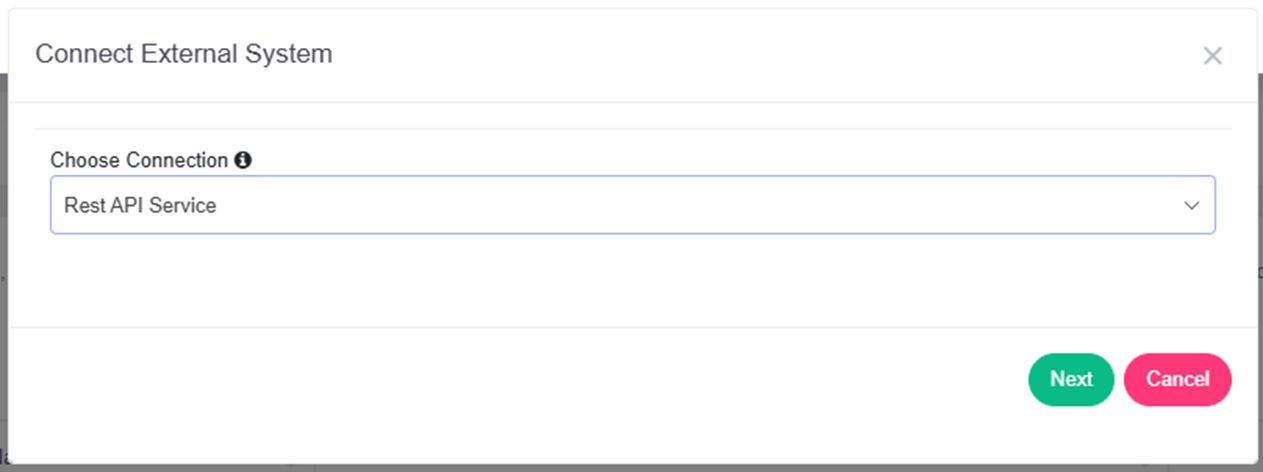
From the dropdown list, select **Rest API** and press **Next**
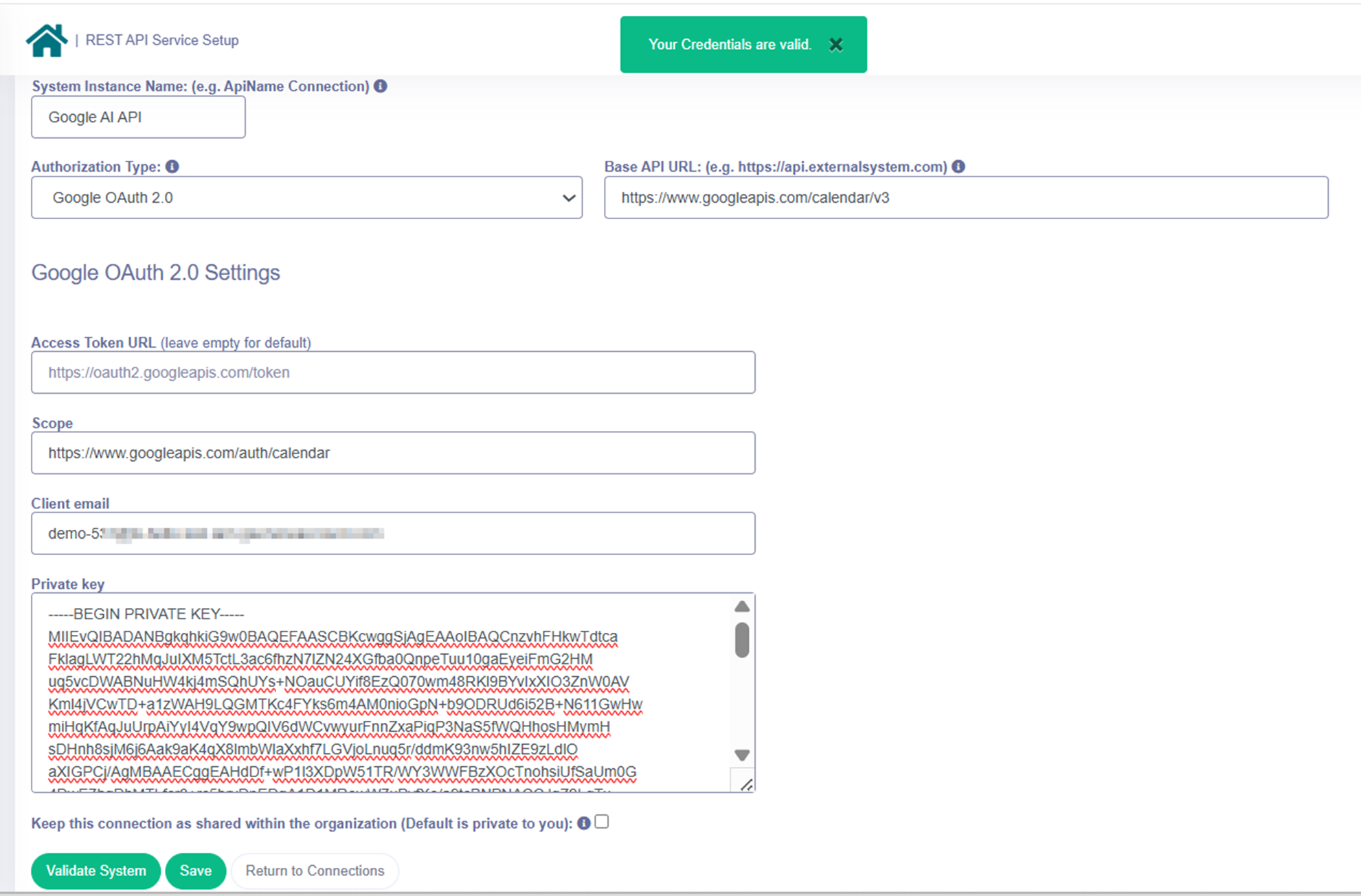
Fill out the Configuration screen, The table below explains each of the inputs shown on this screen.
| Input | Information |
| -------------------- | ---------------------------------------------------------------------------------- |
| System Instance Name | Google AI API |
| Authorization Type | Google OAuth 2.0 |
| Base API URL | Sample Base URL is : |
| Access Token URL | Can be kept Empty |
| Scope | |
| Client email | Email ID which will be generated while creating the Priviate Key, Explained above. |
Fill the required information and click on **Validate and Connect.** If the details are correct, the integration will be saved, and you will be redirected back to the integrations listing page.
**Congratulations, you have successfully integrated Google OAuth to iX Hello!**
---
# Agent Instructions
This documentation is published with GitBook. GitBook is the documentation platform designed so that both humans and AI agents can read, navigate, and reason over technical content effectively. Learn more at gitbook.com.
## Querying This Documentation
If you need additional information that is not directly available in this page, you can query the documentation by asking a question.
Perform an HTTP GET request on the following URL with the `ask` and `goal` query parameters:
```
GET https://docs.ixhello.com/ixhc/connections/google-oauth-2.0-integration.md?ask=&goal=
```
`ask` is the immediate question: it should be specific, self-contained, and written in natural language.
`goal` is what the user is ultimately trying to achieve, the reason they need the answer. Sharing it helps GitBook give you a better, more relevant answer. A goal is most helpful when it describes the outcome the user wants rather than restating the question. For example, with `ask=how do I create an API token`, a goal like `automate deployments from our CI pipeline` lets GitBook tailor the answer to that use case.
The response will contain a direct answer to the question and relevant excerpts and sources from the documentation.
Use this mechanism when the answer is not explicitly present in the current page, you need clarification or additional context, or you want to retrieve related documentation sections.