> For the complete documentation index, see [llms.txt](https://docs.ixhello.com/llms.txt). Markdown versions of documentation pages are available by appending `.md` to page URLs; this page is available as [Markdown](https://docs.ixhello.com/ixhc/connections/orchestration-enhancement-lex-nlp-bot-integration.md).
# Orchestration Enhancement: Lex NLP Bot Integration
**iX Hello** is a **no-code AI assistant platform** by Concentrix that enables businesses to create multimodal, customer-facing bots quickly.
It supports **intent-based orchestration**, meaning you can design bots that **route conversations across multiple skills or workflows** based on user intent.
### Overview
It refers to **intents that act as a controller**, orchestrating multiple sub-intents or workflows. Instead of a single response, these intents **trigger a sequence of actions** (e.g., fetching data from CRM, confirming details, updating backend).
Useful for **complex journeys** like:
* Order management (check status → update → notify)
* Appointment booking (validate availability → confirm → send reminder)
* Multi-step troubleshooting flows.
### How to create intent**-based Orchestration in iX Hello**
### Prerequisites
Before commencing bot creation, ensure the following prerequisites are met:
* Access to [iX Hello](https://bots.ixhello.com) Studio Mode.
* Familiarity with basic iX Hello navigation.
* Basic knowledge of RESTful API principles and JSON format for handling the data returned by the API.
* Use the below NLP bot links to create a custom app without using the Orchestration step
* To Create a Basic NLP bot, refer to [this](/ixhc/apps/custom-skills-series-step-1-building-a-custom-skill.md)
* To Create the connection, refer to [this](/ixhc/apps/custom-skills-series-step-2-creating-a-connection.md), to publish on lex refer to [this](/ixhc/apps/custom-skills-series-step-3-publishing-to-a-channel.md)
#### Note : Use the below steps to create Intent using Orchestartion
#### Let's create an Intent
Navigate to the ‘Intents’ tab and click on the ‘Create New Intent’ button.
#### Create Design
Once the Intent is created, click on the Action and choose Design.
Which Open the **intent design canvas**, where you can define the orchestration flow (e.g., steps, API calls, conditions).
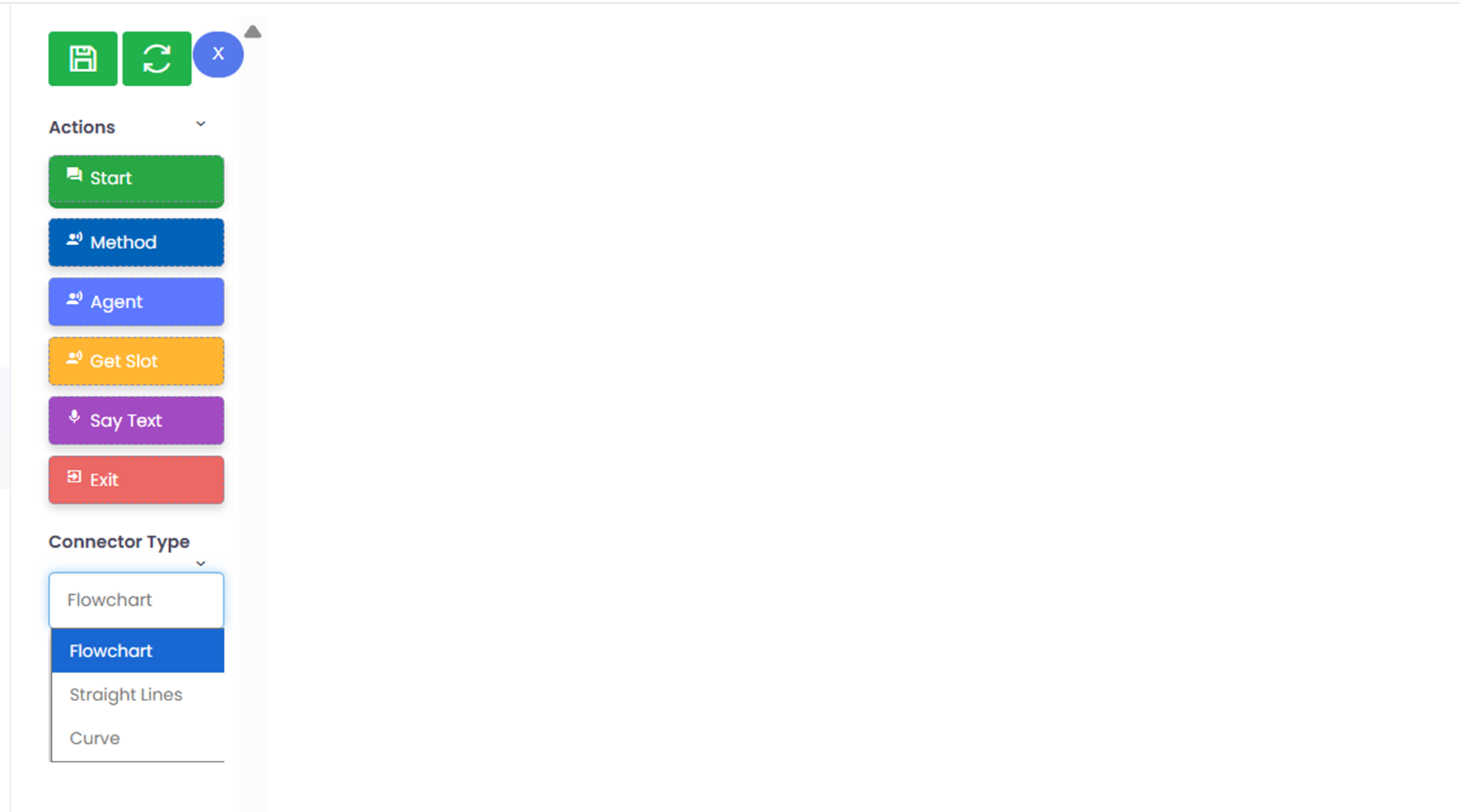
You will land on Orchestration Intent Design Canvas. It’s where you visually build the workflow for an orchestration-type intent.
Here’s what each element means:
* Start Node:
* Entry point of the orchestration flow. Every design begins here.
* Method Node:
* Represents a function or API call.
* Used to fetch data, update records, or perform backend operations.
* Agent Node:
{% hint style="info" %}
This node is not available for the NLP applications
{% endhint %}
* Get Slot Node:
* Captures specific user input (e.g., email, phone number).
* Essential for gathering required parameters before calling APIs.
* Say Text Node:
* Sends a response message to the user.
* Can display dynamic data from previous steps.
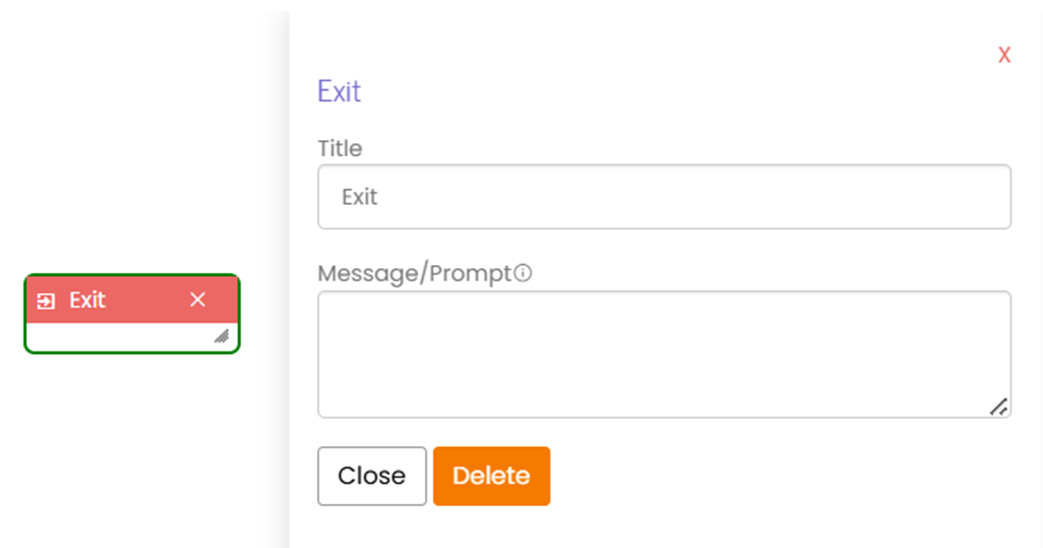
* Exit Node:
* Marks the End of the orchestration flow.
* Connector Type : Flowchart / Straight Lines / Curve
* Defines how steps are visually connected in the canvas.
* Flowchart is the default for clear branching logic.
Here you can see the detailed explanations with the screenshots on the above-mentioned elements:
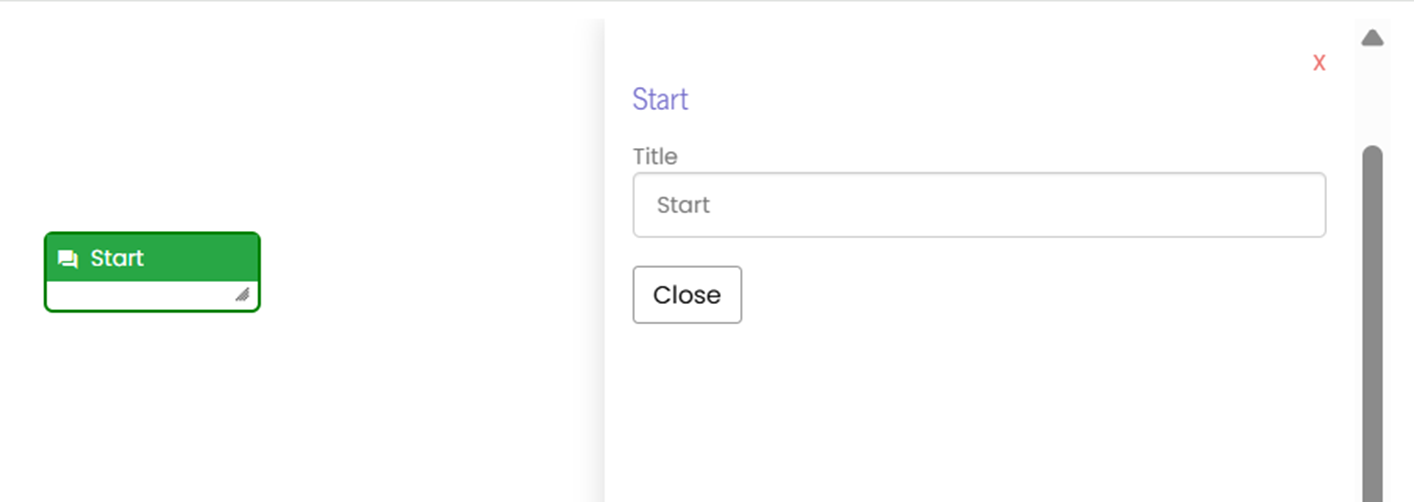
#### Start Node:
The start node is the start point of a flow; the processing of each session starts here. There needs to be exactly one start node in each flow.
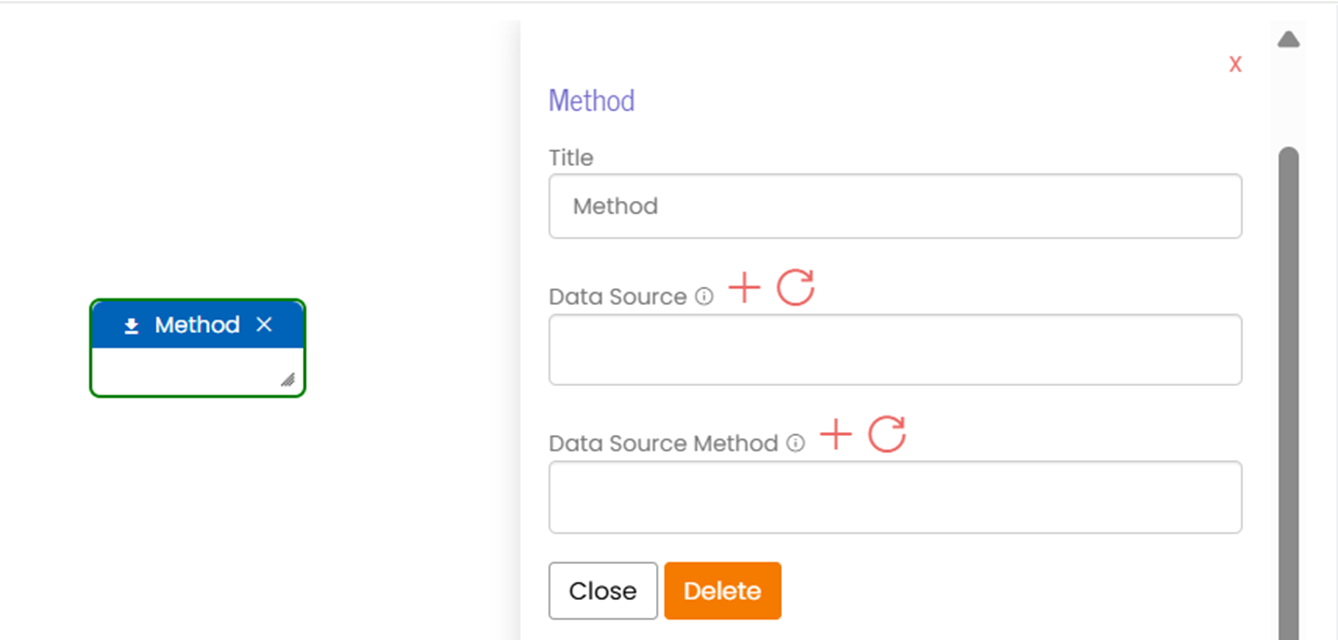
#### Method Node:
* Title: You can rename this to something meaningful (e.g., `FetchContactDetails`).
* Data source Dropdown: This is where you select or define the API or backend system you want to connect to. The “+” icon lets you add a new data source by navigating to the method screen of the custom app, and the refresh icon reloads available sources.
* Data Source Method Dropdown: After selecting a data source, this field specifies which method or endpoint to call (e.g., `GET /contacts`, `POST /updateContact`). Again, “+” adds a new method by navigating to the method screen of the custom app, and refresh updates the list.
* Buttons:
* Close: Exit without saving changes.
* Delete: Remove this Method node from the flow.
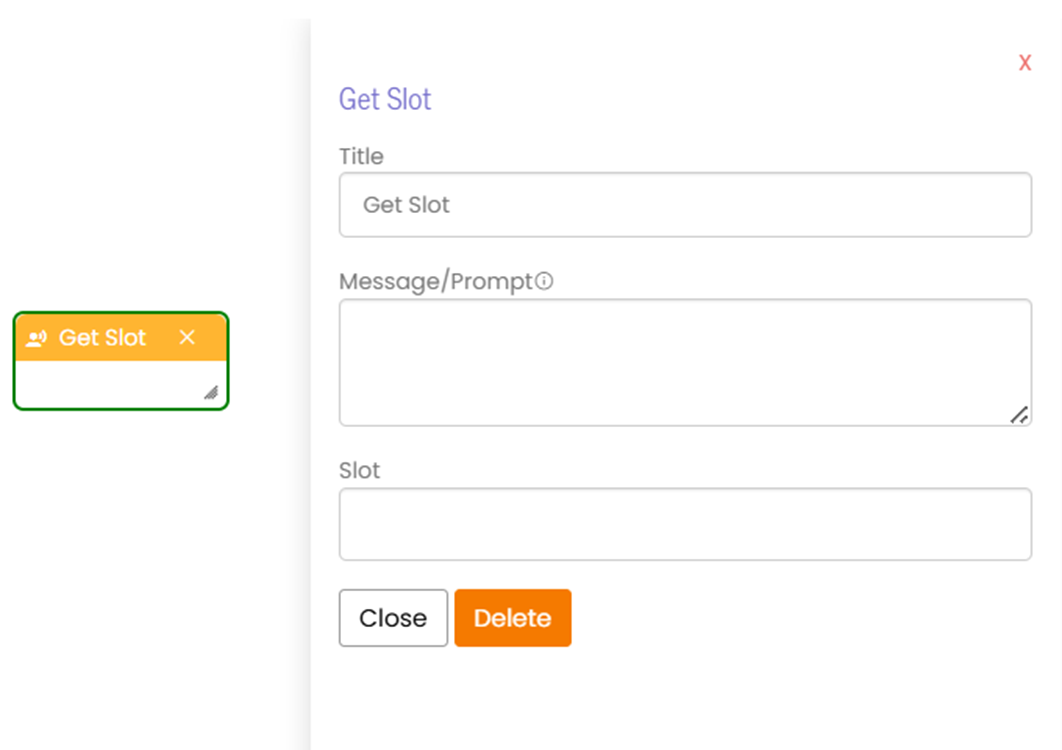
#### Get Slot Node:
* Represents a step in the orchestration flow where the bot collects a specific piece of information from the user (called a “slot”).
* Message/Prompt: This is the question or prompt the bot will ask the user to capture the required information.
* Slot: The variable name where the captured value will be stored.
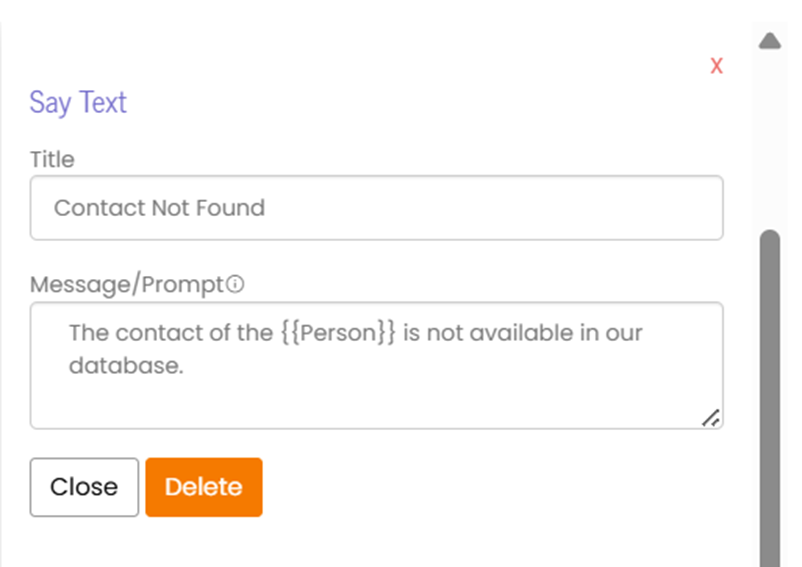
#### Say Text Node:
* Represents a step in the orchestration flow where the bot sends a message back to the user.
* Message/Prompt: This is the text the bot will display to the user at this step. It can be static (e.g., *“Your request is complete.”*) or dynamic (e.g., *“Your contact details are: {{contact Info}}”* using variables from previous steps).
* Often placed after a Method node (API call) to show the retrieved data or after a Get Slot node to confirm input.
#### Exit Node:
* Represents the end point of the orchestration flow. When the bot reaches this node, the conversation or the current process is terminated.
* Message/Prompt: This is an optional closing message the bot will display before ending the flow. Example: *“Thank you for using our service. Goodbye!”*
* It can also provide a **final message** to confirm completion or politely end the interaction.
### Create Intent Orchestration
#### Get Slot: Setup of the specific Slot for the Intent
| Settings | Description |
| ---------------- | ----------------------------------------------------------------------------------------------------------------------------------------------------------------------- |
| Title | Person |
| Message/Prompt | Please provide the name of the person whose contact number you want to find. |
| Slot (Drop-Down) | Person (When interacting with intents, you expect inputs from the users. Those inputs are mapped to slots. You need to capture those inputs for processing the intent.) |
Click: Close
#### Method: Setup of the specific Method for the Intent
| Settings | Description |
| ------------------------------ | ---------------- |
| Title | GetContactMethod |
| Data Source (Drop-Down) | Rest API DS |
| Data Source Method (Drop-Down) | GetContactMethod |
#### Say Text: Setup of the specific Say Text for the instance Contact Found
{% hint style="info" %}
To show how the connections work, we created a dummy session variable
{% endhint %}
| Settings | Description |
| -------------- | --------------------------------------- |
| Title | Contact Found |
| Message/Prompt | The contact of the {{Person}} is found. |
#### Say Text: Setup of the specific Say Text for the instance Contact Not Found
| Settings | Description |
| -------------- | --------------------------------------------------------------- |
| Title | Contact Not Found |
| Message/Prompt | The contact of the {{Person}} is not available in our database. |
#### Connection Detail: Contact Found
| Settings | Description |
| ---------------- | --------------------------------------------------------------------- |
| Title | Contact Found |
| Message/Prompt | Contact Found |
| Type (Drop-Down) | Conditional |
| Priority | 1 |
| Conditions | Slot/Variable: {{Session.Phone}}, Operator: Not Equals, Value : Empty |
#### Connection Detail: Contact Not Found
| Settings | Description |
| ---------------- | ---------------------------------------------------------------- |
| Title | Contact Not Found |
| Message/Prompt | Contact Not Found |
| Type (Drop-Down) | Conditional |
| Priority | 1 |
| Conditions | Slot/Variable: {{Session.Phone}}, Operator: Equals, Value: Empty |
#### Exit: The Exit node terminates the session and completes the flow execution
| Settings | Description |
| -------------- | ------------------------------------------ |
| Title | Exit |
| Message/Prompt | Thanks for contacting and have a nice day! |
#### The Complete Orchestration Design for GetContactIntent is as follows
---
# Agent Instructions
This documentation is published with GitBook. GitBook is the documentation platform designed so that both humans and AI agents can read, navigate, and reason over technical content effectively. Learn more at gitbook.com.
## Querying This Documentation
If you need additional information that is not directly available in this page, you can query the documentation by asking a question.
Perform an HTTP GET request on the following URL with the `ask` and `goal` query parameters:
```
GET https://docs.ixhello.com/ixhc/connections/orchestration-enhancement-lex-nlp-bot-integration.md?ask=&goal=
```
`ask` is the immediate question: it should be specific, self-contained, and written in natural language.
`goal` is what the user is ultimately trying to achieve, the reason they need the answer. Sharing it helps GitBook give you a better, more relevant answer. A goal is most helpful when it describes the outcome the user wants rather than restating the question. For example, with `ask=how do I create an API token`, a goal like `automate deployments from our CI pipeline` lets GitBook tailor the answer to that use case.
The response will contain a direct answer to the question and relevant excerpts and sources from the documentation.
Use this mechanism when the answer is not explicitly present in the current page, you need clarification or additional context, or you want to retrieve related documentation sections.