Build, validate and test a simple flow
This tutorial demonstrates how to build, validate and test a Customer v2 flow using the Flow editor. This tutorial uses an agent node to collect a number from the user, and reply it back in a say node.
After this tutorial you'll have learned how to:
Collect variables with an agent node
Use those variables in a say node.
Validate and resolve errors.
Test the valid flow and tweak settings where needed.
Step 1: Configure the Flow settings
Sign in to ixHello Customer v2.
In the left navigation menu, go to Flows
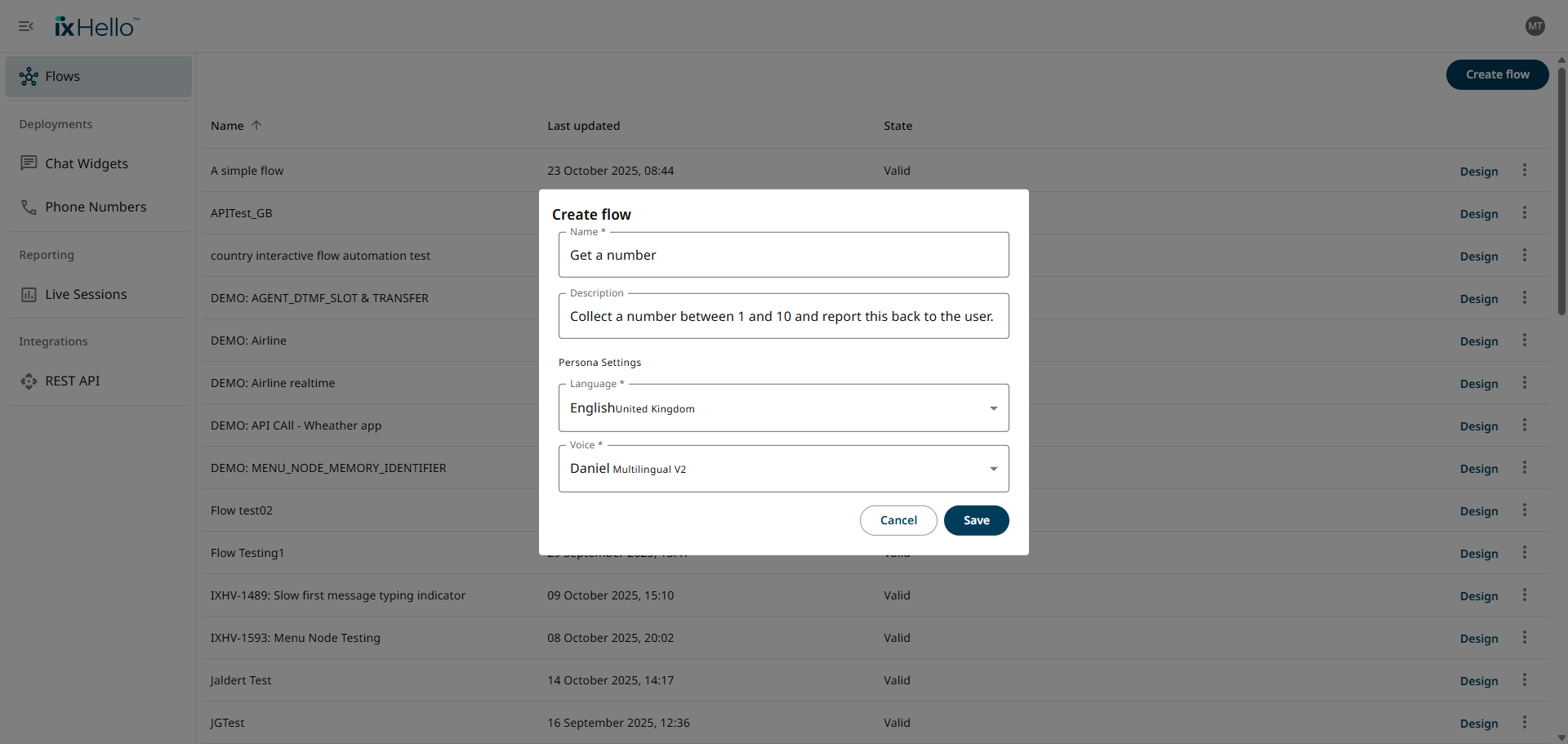
Select Create flow to configure the flow settings.
Name
Get a number
Description
Collect a number between 1 and 10 and report this back to the user.
Persona. Text-to-Speech (TTS) language and voice
The language and voice for the app. Choose any one you desire.

Click Save to create the flow and continue to the flow editor.

Step 2: Add an agent node
Let's add an agent node that's going to retrieve a number between 1-10 from the user.
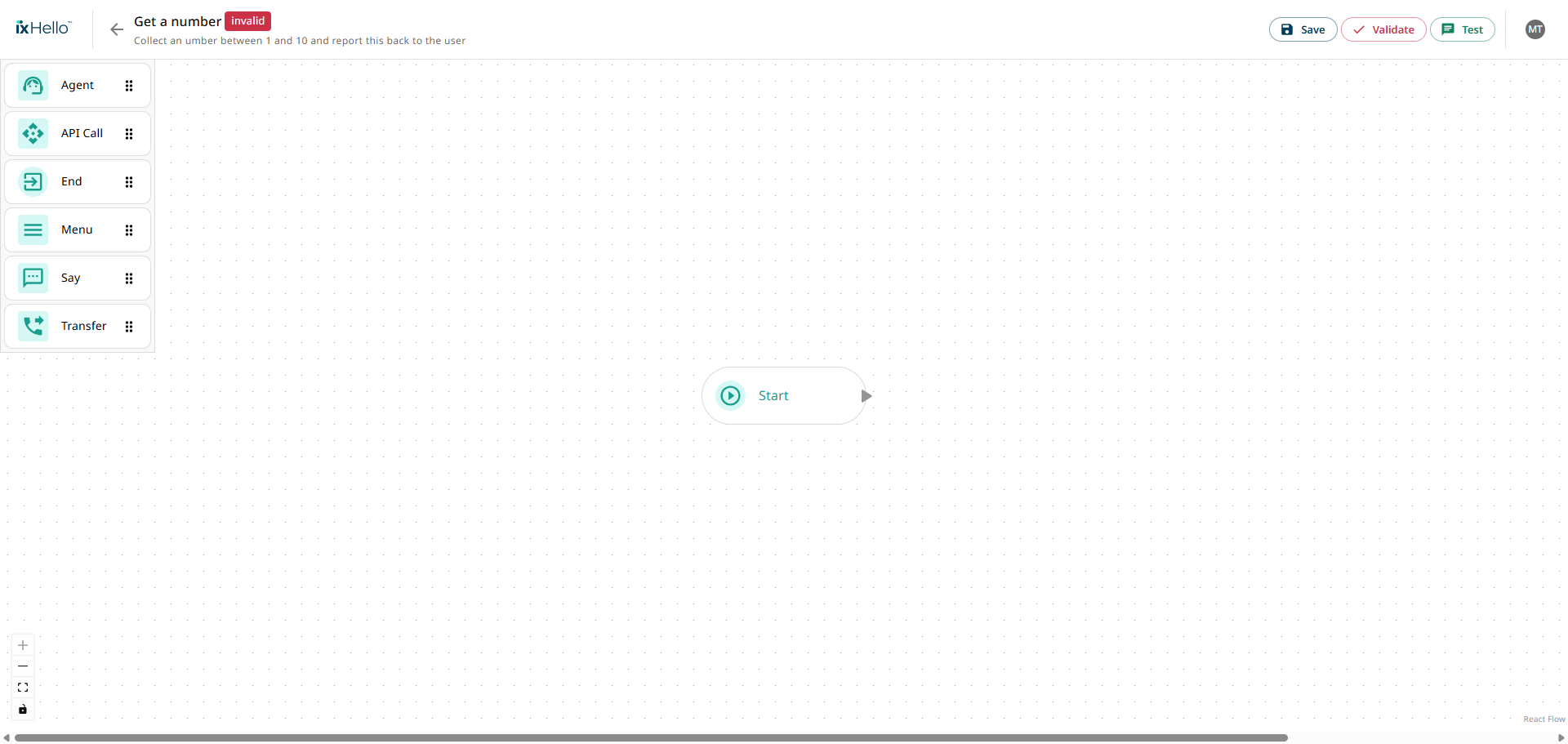
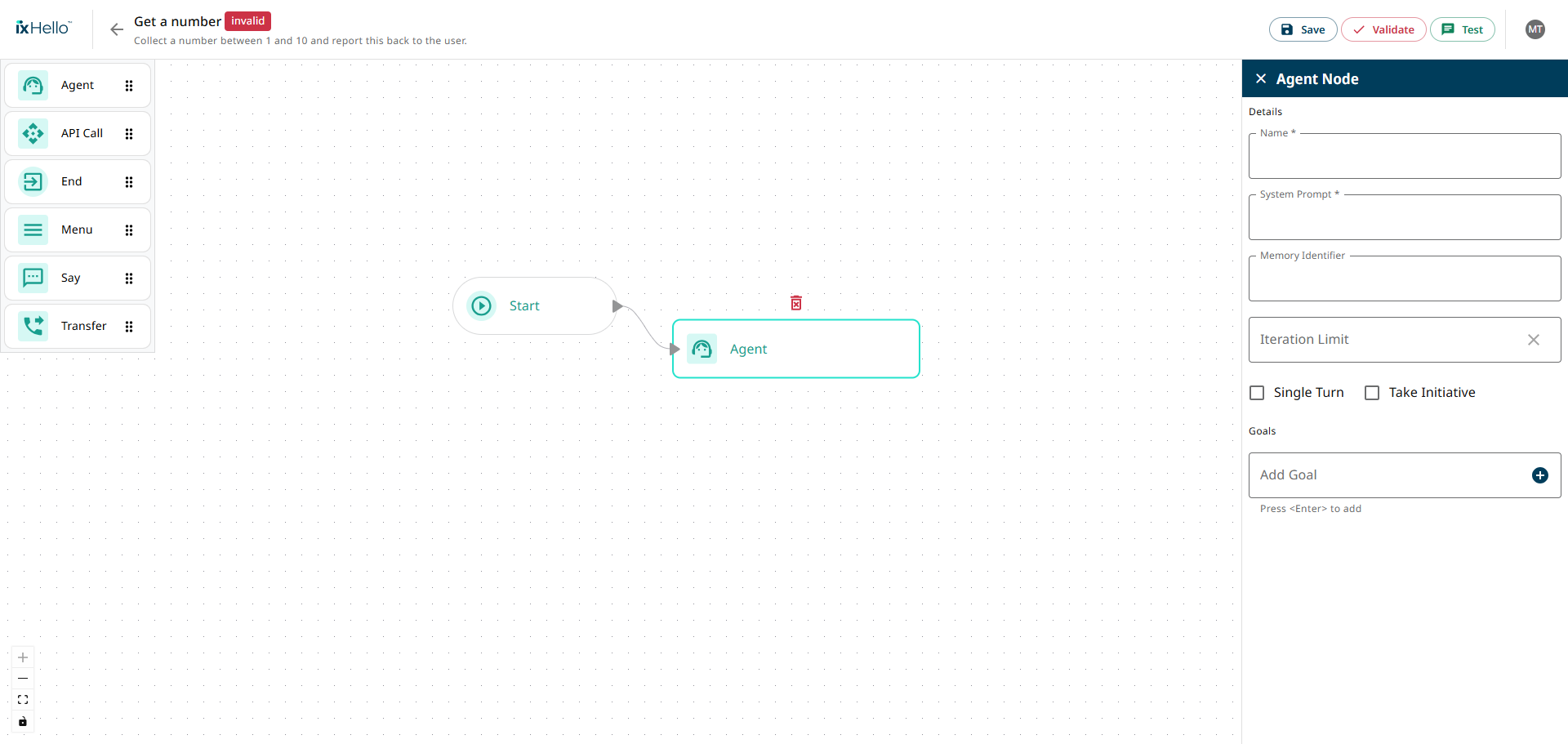
Add an Agent node to the canvas
Connect it to the start node.
Select the agent node to open the right sidebar

Step 3: Configure the agent details
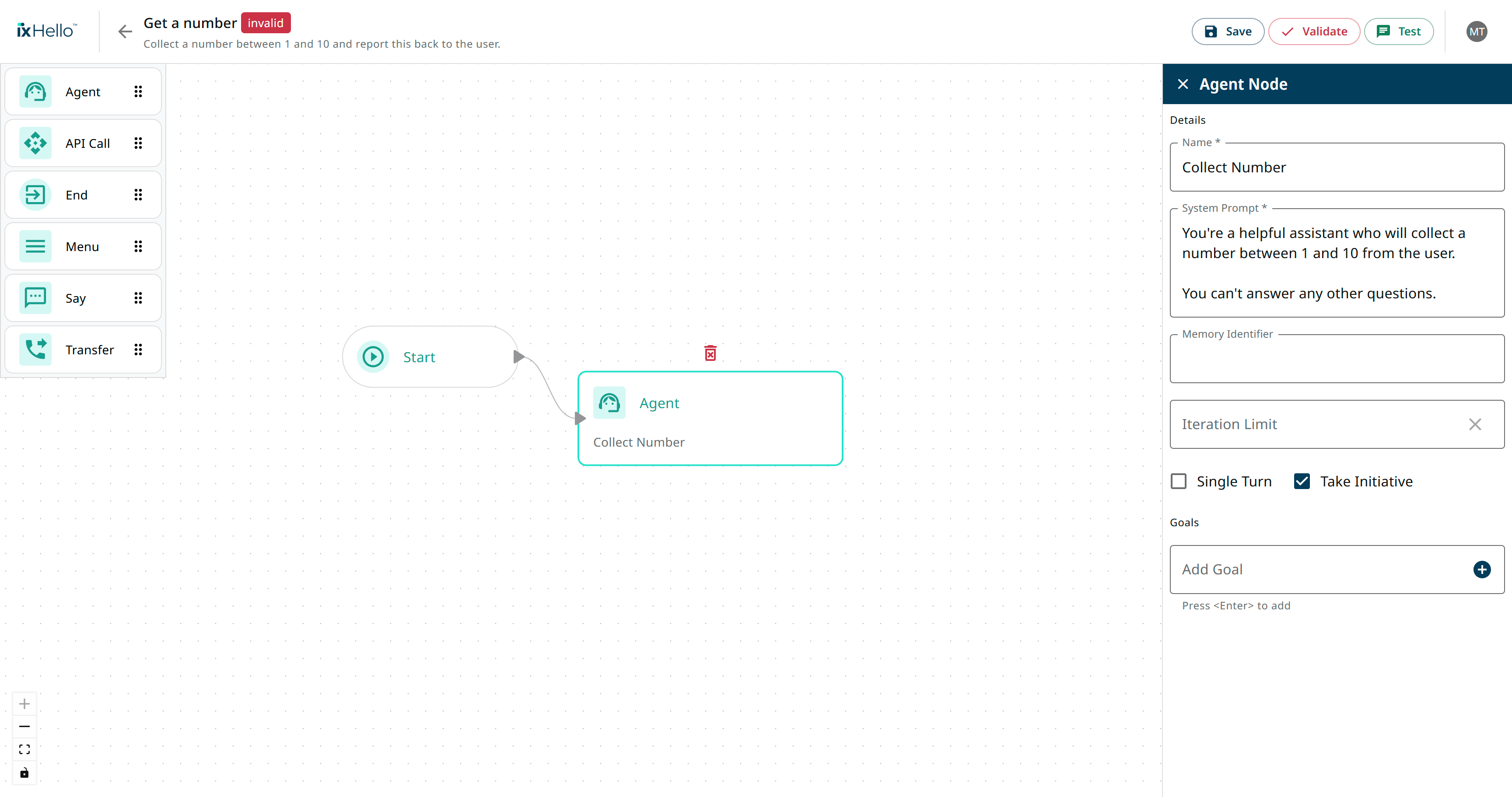
Configure the following agent details. The system prompt is explains what kind of agent it is, the task it needs to complete and sets some basic guards to prevent misuse.
Name
Collect Number
System prompt
You're a helpful assistant who will collect a number between 1 and 10 from the user.
You can't answer any other questions
Memory identifier
empty
Iteration limit
empty
Single turn
Leave unchecked
Take initiative
Checked. This forces the agent to send the first message when the session starts.
Read more about writing effective system prompts for agents here

Step 4: Configure the agent goal
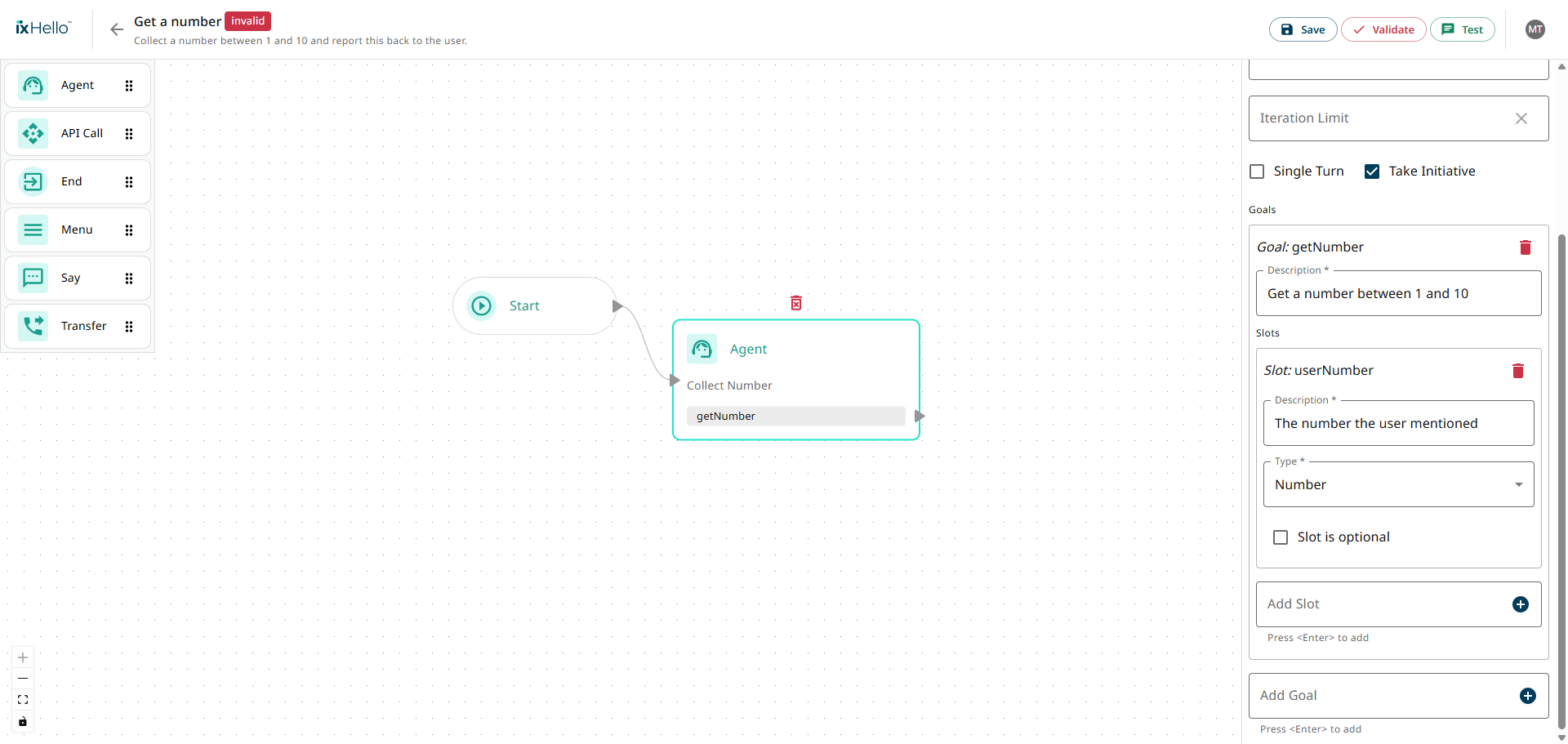
This agent has a single goal, collecting the number between 1 and 10.
Select the Add goal field and enter the value getNumber. Press <enter> or click the + icon to add the goal. The getNumber goal is added to the agent.
Enter the goal description: Get a number between 1 and 10
Select the Add slot field and enter the value userNumber. Press <enter> or click the + icon to add the goal. The userNumber slot is added to the agent.
Enter the slot description: The number the user mentioned
Update the slot type to Number, since we're collecting a numeric value.
Slot is optional stays unchecked. This slot is required to reach the goal.

Step 5: Add and configure the say node
Let's add a say node that's going to send a message back to the user, containing the userNumber variable that the agent node has retrieved.
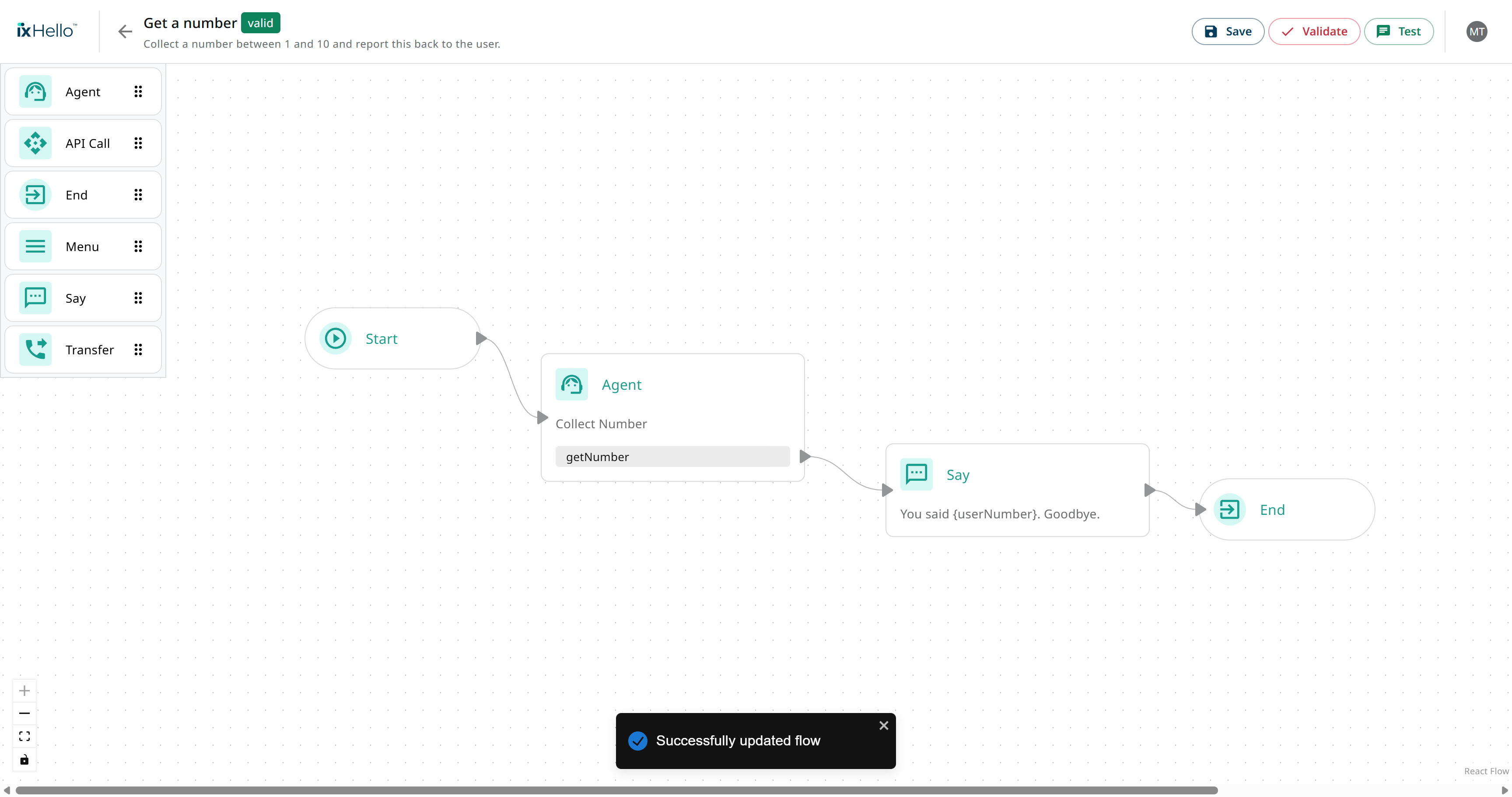
Add a say node to the canvas and connect it to the getNumber exit of the agent.
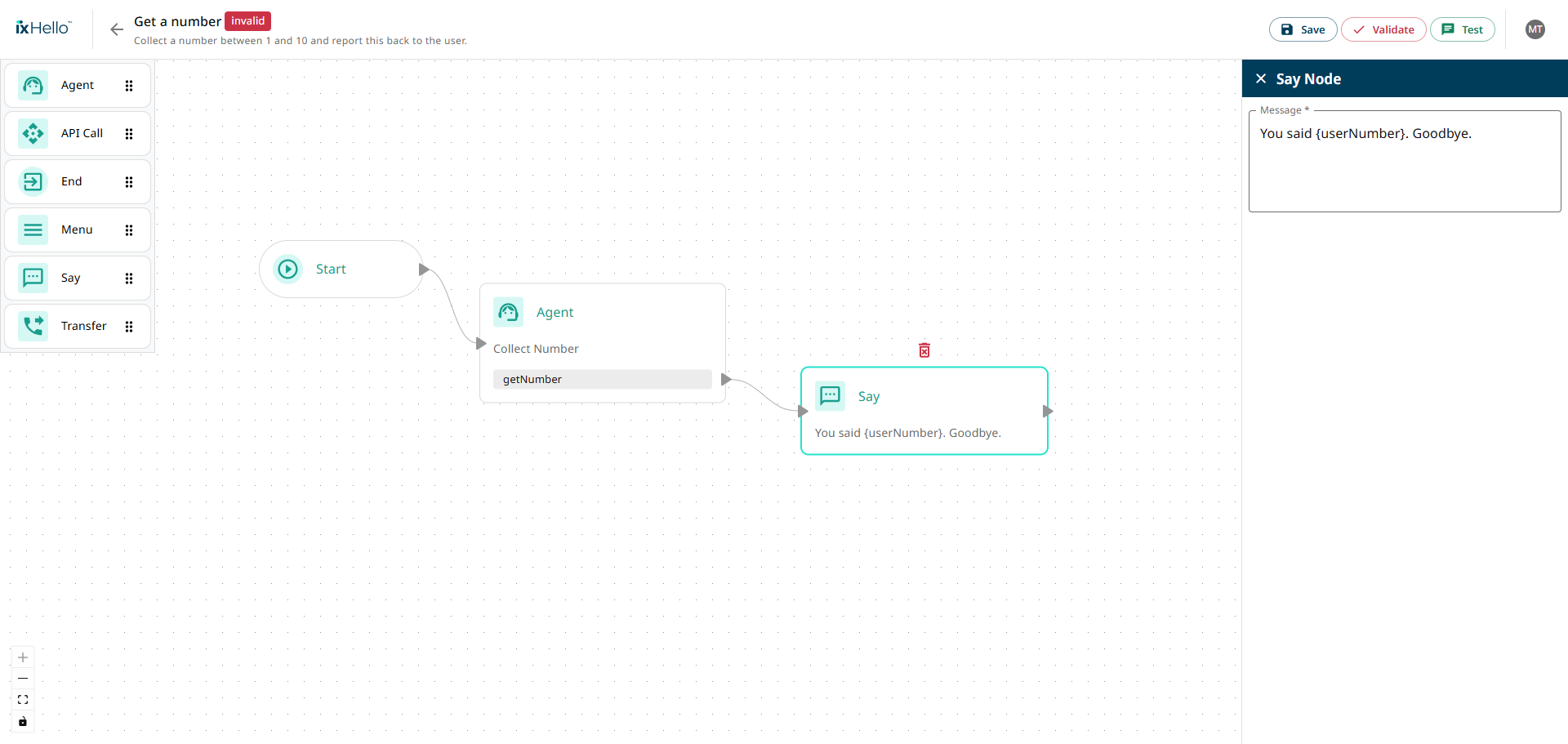
Open the Say node
Configure the following message: You said {{userNumber}}. Goodbye.

Step 6: Add an end node and resolve errors.
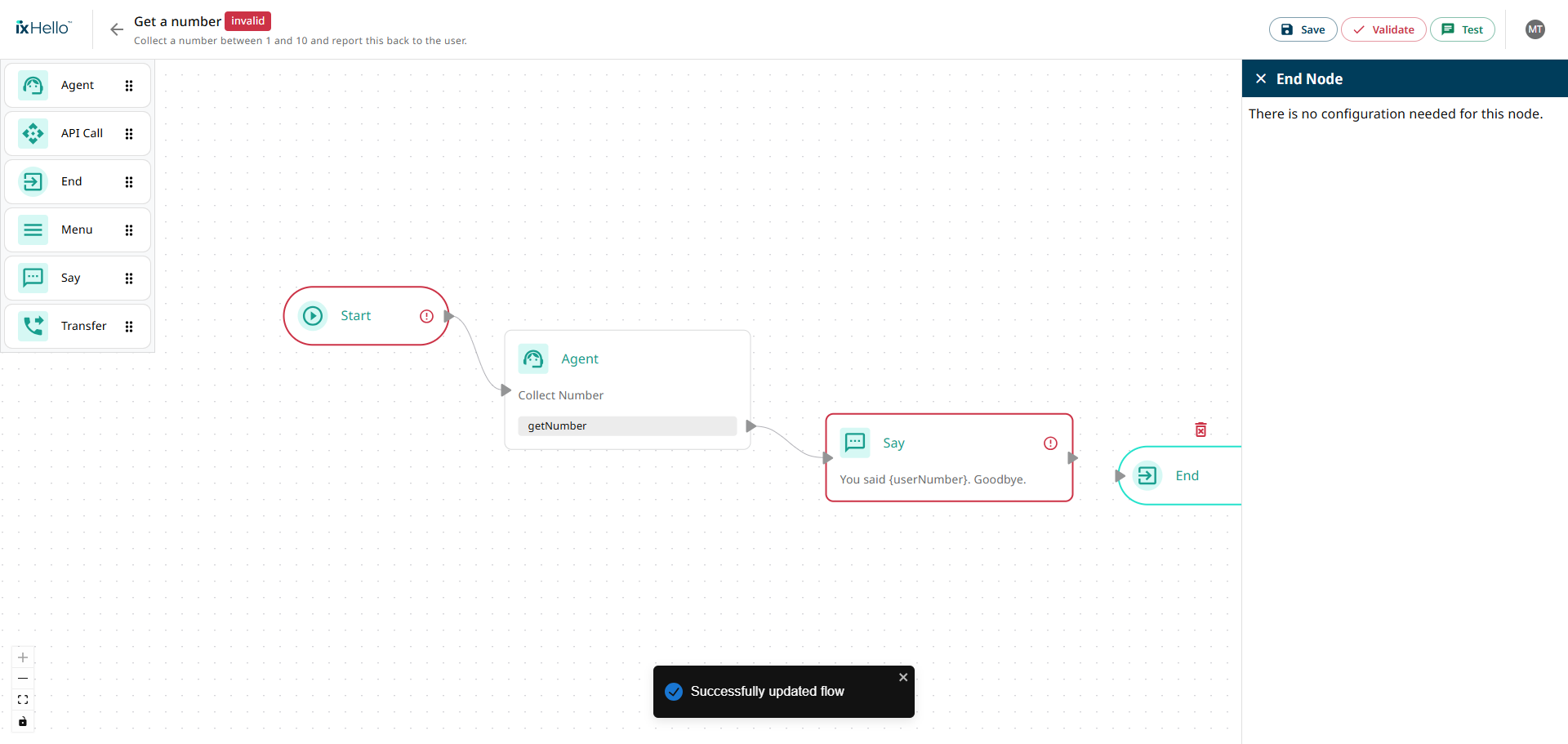
Add an end node to the canvas, but don't connect it to the say node.
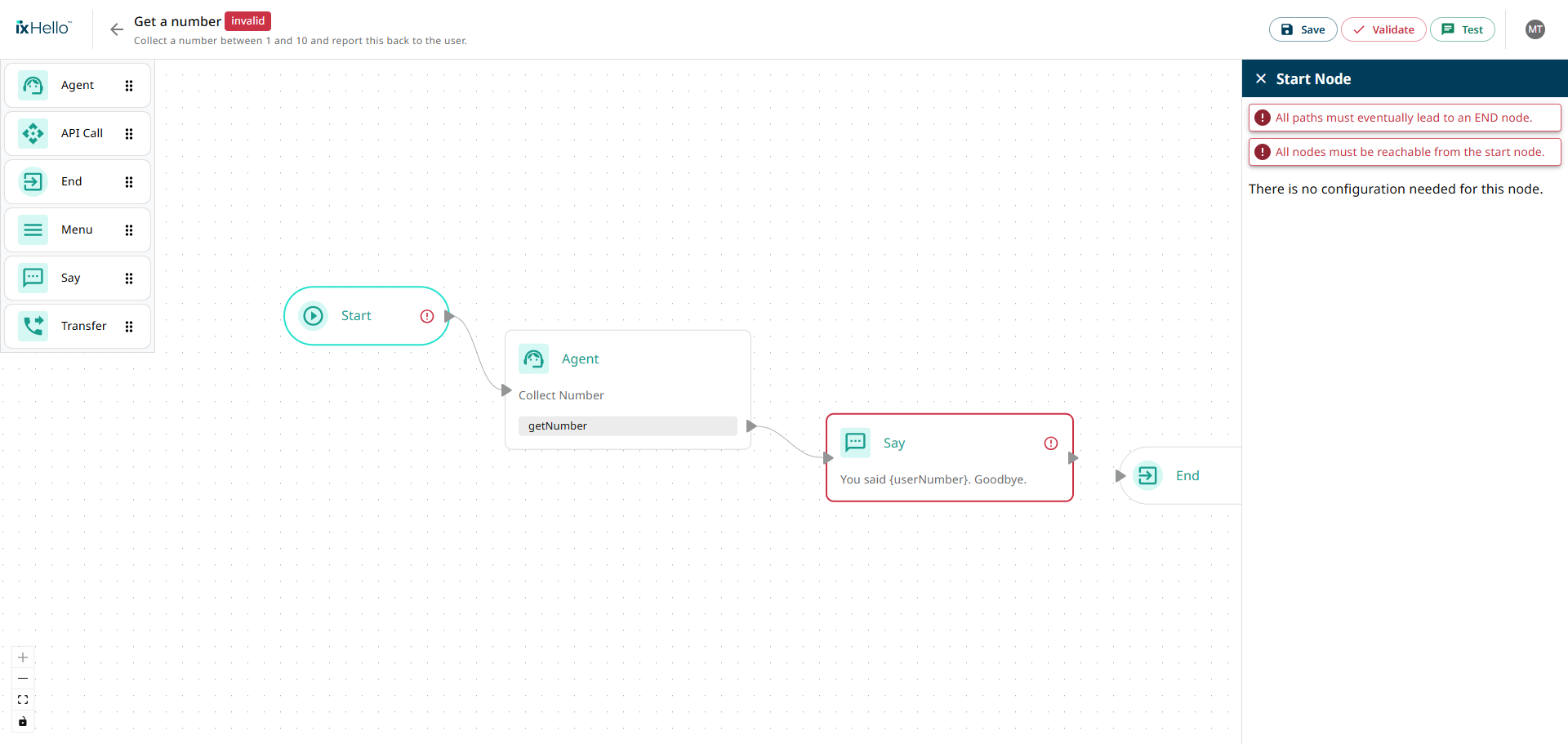
Save the flow. Your changes are saved and validated. The flow is invalid and two nodes are highlighted to help identify and resolve the problem.
The start node can't reach the end node of the flow.
The Say is missing a connection from it's exit point.

A validation error occurs when there are missing connections to other nodes, or required fields are empty in a node.
Click on the start node to view more information about the errors.

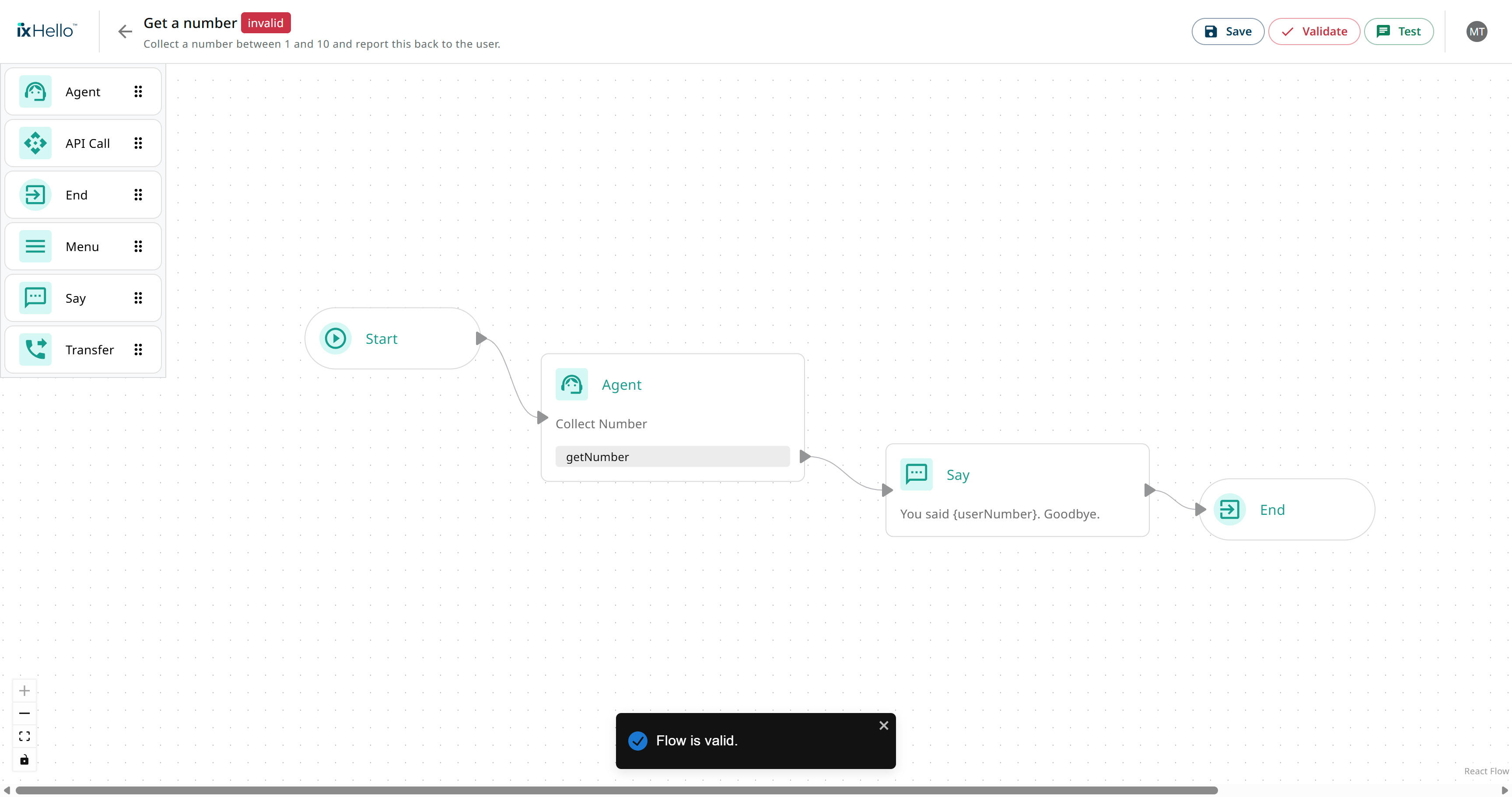
Let's resolve these errors by connecting the say node to the end node and click Validate.
This function validates the state of the flow on the screen, but doesn't save these changes to the backend. This can be seen because the feedback toaster displays Flow is valid, while the badge displays Invalid.

Save the flow. Your changes are saved and validated. The badge state is updated to Valid. Let's test the flow!

Step 7: Test and tweak the get number flow
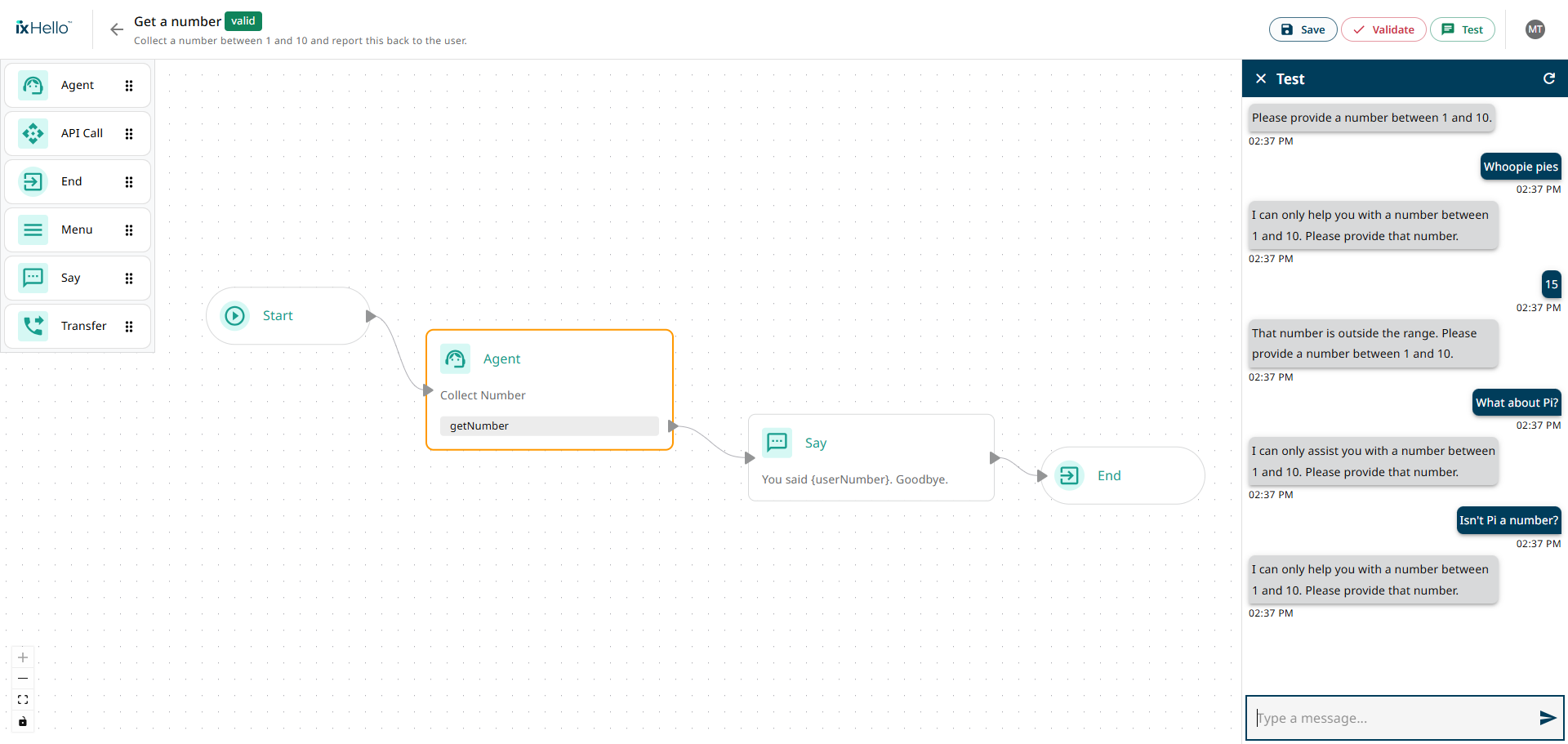
Click the Test button in the top right corner and try out your Weather app!

Try to tweak the flow to make it your own! For example:
Replace You're a helpful assistant in the system prompt with a movie character, for example You're Captain Jack Sparrow, and see the effect it has on the agent's behavior.
Prevent an endless loop by adding an iteration limit to the Collect Number agent and connect your custom Fallback behavior to the exit that appears.
Last updated
Was this helpful?