> For the complete documentation index, see [llms.txt](https://docs.ixhello.com/llms.txt). Markdown versions of documentation pages are available by appending `.md` to page URLs; this page is available as [Markdown](https://docs.ixhello.com/ixhc2/node-grouping-in-flow-designer.md).
# Node Grouping in Flow Designer
## Overview
Node Grouping is a visual organization feature in Flow Designer that helps you organize related nodes into logical sections. By grouping multiple nodes together, you can simplify large flows, reduce canvas clutter, and make complex workflows easier to understand and maintain.
Node Grouping is designed to improve the authoring experience without changing how your flow executes.
***
## Why Use Node Grouping?
As flows grow in size, they can become difficult to navigate and understand. Node Grouping helps break large flows into meaningful sections so that designers and reviewers can focus on specific areas of the flow.
#### Benefits
* Organize related nodes into logical sections.
* Reduce visual clutter in large flows.
* Improve readability during design and review.
* Simplify flow presentations and walkthroughs.
* Reuse common node patterns through copy and paste.
* Maintain existing runtime behavior with no execution changes.
#### Example
Instead of viewing dozens of individual nodes spread across the canvas, you can create groups such as:
* Customer Verification
* Authentication
* Order Lookup
* Balance Check
* Payment Processing
* Escalation Handling
Each section can be collapsed into a single visual unit, making the overall flow easier to understand.
***
## Important: Visual Organization Only
* Node Grouping is a design-time feature only.
* Improves organization and readability
* Helps manage large flows
* Supports collapse and expand functionality
* Does not change flow execution
* Does not create a new runtime node type
* Does not affect branching or routing logic
* Does not alter validation behavior
The Runtime Engine completely ignores group metadata and continues to execute the underlying nodes and connections exactly as before.
***
## Creating a Group
### Step 1: Select Multiple Nodes
Select two or more nodes using:
* Marquee selection
* Shift-click multi-selection
At least two nodes must be selected before a group can be created.
***
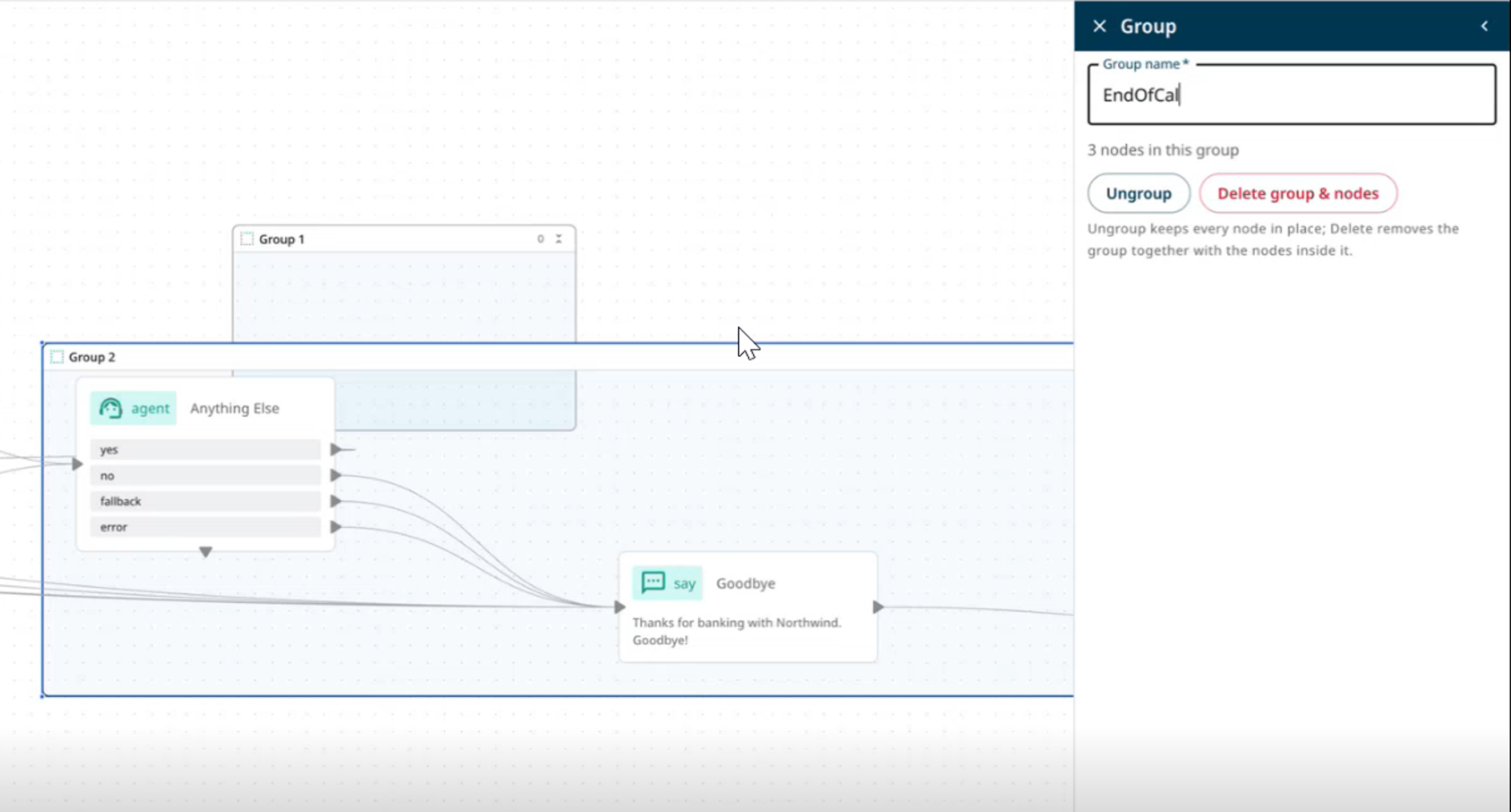
### Step 2: Create the Group
After selecting the nodes:
1. Open the node actions menu.
2. Select **Group**.
3. Enter a group title.
The selected nodes are now organized into a single logical group.
### Step 3: Name the Group
Assign a meaningful name that describes the purpose of the grouped section.
#### Examples
* Customer Verification
* Authentication Flow
* Account Lookup
* Post-Call Processing
* Balance Inquiry
Clear group names make flows easier for other designers to understand.
***
## Viewing Groups
### Expanded View
In expanded mode:
* All member nodes remain visible.
* Nodes can be edited normally.
* Connections appear exactly as they do in the original flow.
Use expanded view when building, modifying, or troubleshooting flow logic.
***
## Collapsed View
In collapsed mode:
* The group is displayed as a single compact node.
* Internal nodes are hidden.
* Visual clutter is reduced.
A collapsed group displays:
* Group title
* Number of nodes contained within the group
#### Example
```
Customer Verification
(12 Nodes)
```
This allows designers to quickly understand the purpose of a section without seeing every individual node.
***
## Editing a Group
You can expand or collapse a group at any time.
#### Expand a Group
Use **Expand Group** when you need to:
* Edit node settings
* Review logic paths
* Update connections
* Troubleshoot flow behavior
***
#### Collapse a Group
Use **Collapse Group** when you want to:
* Review overall flow structure
* Present a flow to stakeholders
* Reduce canvas clutter
* Focus on high-level process design
***
## Ungrouping Nodes
If a group is no longer required, it can be removed.
#### To Ungroup
1. Select the group.
2. Choose Ungroup.
The group container is removed while all original nodes remain intact.
No node configuration or runtime logic is affected.
***
## Typical User Workflow
#### 1. Open a Flow
Open an existing flow in Flow Designer.
#### 2. Select Related Nodes
Choose multiple nodes that represent a logical business process.
#### 3. Create a Group
Select **Group** and provide a meaningful title.
#### 4. Collapse the Group
Reduce visual complexity by showing the group as a single node.
#### 5. Expand When Required
Expand the group whenever edits or reviews are needed.
#### 6. Reuse the Group
Copy and paste reusable grouped logic across flows.
#### 7. Save the Flow
Grouping information is stored and restored automatically.
***
## Canvas Behavior
### Connection Display
#### When a Group Is Expanded
* All internal nodes are visible.
* Existing node-to-node relationships remain visible.
#### When a Group Is Collapsed
* External connections appear connected to the collapsed group.
* Internally, all original node relationships remain unchanged.
The collapsed representation is only a visual abstraction of the underlying flow.
***
## Saving and Reloading
Node Grouping persists with the flow definition.
### Saved Information
The system stores:
* Group ID
* Group title
* Member node IDs
* Collapse or expand state
* Position and layout information
***
### When Reopening a Flow
The system restores:
* All groups
* Group names
* Layout positions
* Collapse states
* Node membership
This ensures designers can continue where they left off without rebuilding groups.
***
## Export and Import Support
Group information is included when flows are exported and imported.
#### Preserved During
* Save
* Reload
* Export
* Import
Groups retain their:
* Titles
* Membership
* Layout
* Collapse state
***
### Backward Compatibility
Older flows that do not contain grouping information continue to work normally.
No migration steps are required.
***
## Copy and Paste Behavior
One of the key benefits of Node Grouping is the ability to reuse grouped logic.
***
### What Gets Copied
When a collapsed group is copied, the system includes:
* The group definition
* Member nodes
* Internal node connections
* Group title
* Collapse state
* Relative node layout
***
### What Does Not Get Copied
Connections that cross the group boundary are excluded.
For example:
The external connection is not copied when the group is duplicated.
***
### What Happens During Paste
When pasted:
* A new group ID is generated.
* New node IDs are generated.
* Internal connections are recreated.
* Relative positions are preserved.
* The copied group is slightly offset on the canvas.
* Parent-child relationships are restored.
The pasted group becomes a completely independent copy.
Changes made to the new group do not affect the original.
***
### After Pasting
The group is pasted without external connections.
Designers must manually reconnect the copied group to other areas of the flow.
External boundary connections are intentionally not recreated.
***
## Limitations
| Limitation | Description |
| ----------------------- | ----------------------------------------- |
| Visual only | Does not impact runtime execution |
| Minimum selection | Requires at least two nodes |
| No nested groups | Groups cannot contain other groups |
| External edges excluded | Cross-boundary connections are not copied |
| Runtime unaware | Runtime Engine ignores group metadata |
***
## Summary
Node Grouping helps organize complex flows by allowing designers to bundle related nodes into named, collapsible visual sections. Groups can be expanded for editing, collapsed for readability, saved with the flow, and reused through copy and paste. Because grouping is purely a visual feature, it does not affect runtime execution, validation, or flow behavior. This makes it a safe and effective way to simplify large flows while maintaining full backward compatibility.
---
# Agent Instructions
This documentation is published with GitBook. GitBook is the documentation platform designed so that both humans and AI agents can read, navigate, and reason over technical content effectively. Learn more at gitbook.com.
## Querying This Documentation
If you need additional information that is not directly available in this page, you can query the documentation by asking a question.
Perform an HTTP GET request on the following URL with the `ask` and `goal` query parameters:
```
GET https://docs.ixhello.com/ixhc2/node-grouping-in-flow-designer.md?ask=&goal=
```
`ask` is the immediate question: it should be specific, self-contained, and written in natural language.
`goal` is what the user is ultimately trying to achieve, the reason they need the answer. Sharing it helps GitBook give you a better, more relevant answer. A goal is most helpful when it describes the outcome the user wants rather than restating the question. For example, with `ask=how do I create an API token`, a goal like `automate deployments from our CI pipeline` lets GitBook tailor the answer to that use case.
The response will contain a direct answer to the question and relevant excerpts and sources from the documentation.
Use this mechanism when the answer is not explicitly present in the current page, you need clarification or additional context, or you want to retrieve related documentation sections.