> For the complete documentation index, see [llms.txt](https://docs.ixhello.com/llms.txt). Markdown versions of documentation pages are available by appending `.md` to page URLs; this page is available as [Markdown](https://docs.ixhello.com/ixhc2/technical-specifications/campaign-management.md).
# Campaign Management
### Overview
The Campaign Management feature allows users to create and manage outbound calling campaigns by assigning a flow, adding contacts, selecting a phone number, and configuring dialing settings. Once launched, the system automatically places calls to the configured contacts and provides real-time visibility into campaign progress through a dashboard.
The feature supports concurrent calling, retry attempts, alternate phone numbers, Quiet Hours compliance, and Do Not Call (DNC) lists to ensure efficient and compliant outreach. Users can monitor call outcomes, pause or stop campaigns, and export campaign results for reporting and analysis.
Additionally, multiple campaigns can run simultaneously using different phone numbers, making it easier to manage large-scale outbound communication activities from a single platform.
The Campaign Management feature enables administrators to create outbound calling campaigns, assign conversational flows, manage contacts, and monitor campaign performance in real time.
### Creating a Campaign
To create a campaign:
#### Step 1: Navigate to Campaigns
* From the left navigation menu, select Campaigns.
* Click Create Campaign.
#### Step 2: Configure Campaign Details
* Enter a Campaign Name.
* Select the Flow that should be played when calls are made to contacts.
* Assign the Caller ID/Phone Number that contacts will see when they receive the call.
#### Step 3: Configure Call Settings
* Set the Maximum Concurrent Calls value.
* This determines how many contacts can be called simultaneously.
* Example: If set to 2, only two calls will be active at the same time.
#### Step 4: Add Contacts
* Upload or add the contacts that should be called as part of the campaign.
* Include primary and alternate phone numbers if required.
* Configure options such as Try Alternate Number for contacts whose primary number fails.
**Phone Number Format Requirements**
When entering phone numbers in the spreadsheet, all numbers must follow the E.164 format:
* Start with a + (plus) sign
* Follow with the country code
* Then enter the phone number
* Example: `+14155552671`
**Entering E.164 Numbers in a Spreadsheet**
To ensure the **+** sign is preserved and displayed correctly in spreadsheet applications (such as Excel), enter an apostrophe (`'`) before the phone number:
#### Step 5: Configure Outcome Rules
* Define Outcome Rules to control campaign behavior based on call results.
* Configure redial attempts, retries, and other call-handling scenarios.
* Optionally add a delay between calls to avoid rapid call execution.
#### Step 6: Create the Campaign
* Review all configured settings.
* Click Create Campaign.
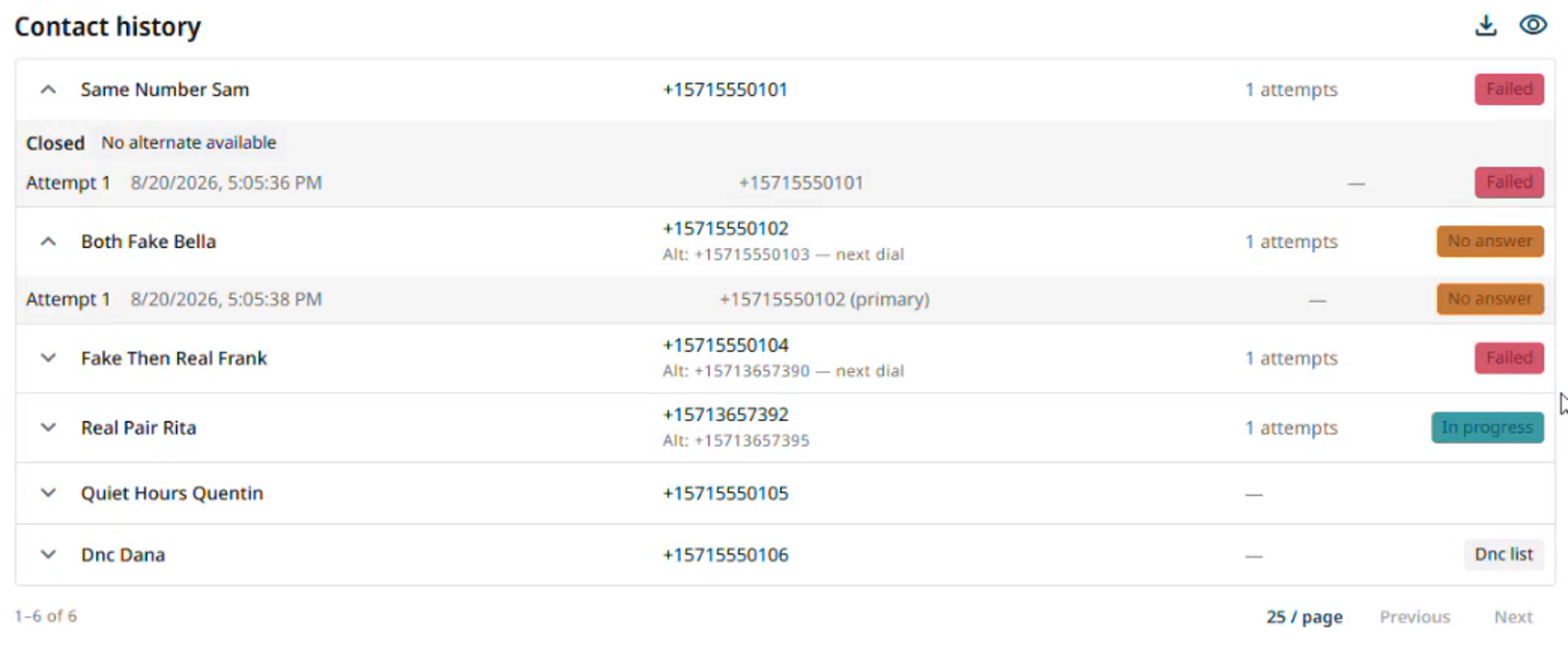
* The campaign dashboard provides a centralized view of campaign activity, including:
* Contact details
* Time zone information
* Current call status
* Call outcomes
* Retry attempts
* Campaign progress metrics
Administrators can monitor campaign execution in real time and track the status of every contact included in the campaign.
#### Step 7: Configure Compliance Settings
Compliance settings help ensure campaigns are executed in accordance with business policies, regulatory requirements, and calling restrictions.
**Do Not Call (DNC) List**
Add contacts to the Do Not Call (DNC) List if they should never be contacted as part of the campaign.
When a contact is included in the DNC list:
* All outbound call attempts to that contact are completely suppressed.
* The contact is excluded from campaign dialing activities.
* No retries or alternate-number attempts are initiated.
**Call Failure Handling**
If a call attempt fails, the campaign engine follows the configured retry and recovery rules.
For example, if a contact's primary phone number is unreachable or invalid:
* The system can automatically attempt an alternate phone number, if configured.
* Retry attempts are executed according to the campaign settings.
* Calls continue to be retried until the configured retry limit is reached or campaign rules determine no further attempts should be made.
**Quiet Hours and Legal Calling Hours**
The campaign engine respects configured legal calling windows and quiet-hour restrictions.
If a contact cannot be called during the current time period:
* The call is temporarily suppressed.
* The contact remains eligible for future campaign activity and is not added to the DNC list.
* The system automatically schedules a retry when calling becomes legally permissible.
This ensures compliance with time-based calling regulations while maintaining campaign continuity and maximizing contact reach.
**Key Characteristics**
* Managed directly within the campaign configuration.
* Configured independently for each campaign.
* Prevents outbound calls to restricted or excluded contacts.
* Supports alternate-number dialing and configurable retry logic.
* Enforces quiet-hour and legal calling-hour restrictions.
* Helps ensure compliance with organizational policies and regulatory requirements.
* Maintains campaign efficiency while respecting customer contact preferences and legal obligations.
#### Step 8: Launch the Campaign
* Click Start Campaign to begin outbound calling.
* The system starts calling contacts based on:
* Configured concurrency limits
* Outcome rules
* Compliance restrictions
#### Step 9: Monitor Campaign Progress
The live dashboard displays:
* Calls currently in progress
* Completed calls
* Failed calls
* Redial attempts
* Suppressed contacts
* Campaign statistics and outcomes
When a call successfully connects:
1. The assigned flow is executed.
2. The conversation proceeds normally.
3. Call duration and interaction details are recorded.
4. The call is marked as completed upon termination.
Each completed interaction contributes to the overall campaign outcome metrics displayed in the dashboard.
#### Step 10: Manage the Campaign
You can:
Pause Campaign: Temporarily suspend outbound dialing while preserving campaign state.
Resume Campaign: Continue processing from the point where the campaign was paused.
Stop Campaign: Terminate campaign execution and prevent any further call attempts.
#### Step 11: Export Campaign Results
Campaign results can be exported for analysis and auditing purposes.
Administrators can:
* Filter campaign results
* Review contact outcomes
* Export campaign history
* Download campaign details in CSV format
Exported reports include contact information, call outcomes, and campaign execution results.
***
### Running Multiple Campaigns
The platform supports running multiple campaigns concurrently.
**Key Considerations**
* Each campaign should use a dedicated phone number.
* Multiple campaigns can operate simultaneously.
* Overall capacity depends on the available telephony resources and environment limits.
The number of campaigns that can run concurrently is primarily governed by the number of available phone numbers and system resources.
***
### Current Capacity Considerations
The current implementation supports production-ready campaign execution; however, large-scale load testing for very high campaign volumes is still under evaluation.
Organizations planning large deployments should assess available infrastructure capacity and telephony resources to determine supported concurrency levels.
***
### MVP Scope
The Campaign feature is currently available as a Minimum Viable Product (MVP) and provides:
* Campaign creation and management
* Flow assignment
* Contact management
* Real-time monitoring
* Quiet-hour enforcement
* Do Not Call list support
* Retry and alternate number handling
* Campaign reporting and data export
Additional enhancements and scalability improvements are planned for future releases.
---
# Agent Instructions
This documentation is published with GitBook. GitBook is the documentation platform designed so that both humans and AI agents can read, navigate, and reason over technical content effectively. Learn more at gitbook.com.
## Querying This Documentation
If you need additional information that is not directly available in this page, you can query the documentation by asking a question.
Perform an HTTP GET request on the following URL with the `ask` and `goal` query parameters:
```
GET https://docs.ixhello.com/ixhc2/technical-specifications/campaign-management.md?ask=&goal=
```
`ask` is the immediate question: it should be specific, self-contained, and written in natural language.
`goal` is what the user is ultimately trying to achieve, the reason they need the answer. Sharing it helps GitBook give you a better, more relevant answer. A goal is most helpful when it describes the outcome the user wants rather than restating the question. For example, with `ask=how do I create an API token`, a goal like `automate deployments from our CI pipeline` lets GitBook tailor the answer to that use case.
The response will contain a direct answer to the question and relevant excerpts and sources from the documentation.
Use this mechanism when the answer is not explicitly present in the current page, you need clarification or additional context, or you want to retrieve related documentation sections.