> For the complete documentation index, see [llms.txt](https://docs.ixhello.com/llms.txt). Markdown versions of documentation pages are available by appending `.md` to page URLs; this page is available as [Markdown](https://docs.ixhello.com/ixhc2/unified-persona-controls-global-persona-setup.md).
# Unified Persona Controls/ Global Persona Setup
The persona settings were initially managed on a single page. As the experience evolved, these settings became more detailed, offering greater control. To maintain an intuitive and user-friendly setup, the experience has been restructured into a step-by-step flow. This guides users through chat, voice, and language preferences sequentially.
The experience has evolved from a single‑page setting to a step‑by‑step flow for two key reasons.
**First:** the functionality has grown significantly over time, and managing everything on one page was no longer effective. As more controls were added, the experience began to feel dense and harder to navigate.
**Second:** the stepper model makes the experience more approachable and manageable as complexity increases. By breaking the setup into focused steps, it helps users understand and configure each part of the persona—chat, voice, and language—without feeling overwhelmed, while also allowing the experience to scale more naturally over time.
### Step 1 : Flow Details
The **Flow Details** page is the first step in the setup process and establishes the basic identity of the flow. It captures high‑level information that helps users identify, understand, and manage the flow later.
#### What users do on this page
* **Name (Required)**\
Users provide a concise name for the flow. This name is used as the primary identifier across the product, such as in lists, dashboards, and references.\
*Character limit: 50 characters.*
* **Description (Optional)**\
Users can add a short description to give additional context about the purpose or behavior of the flow. This is especially useful for teams managing multiple flows.\
*Character limit: 255 characters.*
Then click on 'Next'
***
### Step 2 : AI & Persona Settings
The **AI & Persona Settings** step defines how the AI behaves and communicates throughout the flow. This step allows users to shape the assistant’s personality, tone, and response style before configuring channel‑specific settings like chat or voice.
#### Purpose of this step
This step establishes a **foundational persona** for the flow. The preferences set here act as global behavioral guidelines that influence all downstream interactions unless explicitly overridden in later steps.
#### configuration areas :
**1. Formality**
Use a slider to adjust the AI's tone:
* **Formal**: Professional, precise, and structured.
* **Semi-formal**: Balanced and conversational.
* **Informal**: Relaxed and friendly.
This ensures the AI's language fits the audience and context.
**2. Brevity**
Use a slider to set response length:
* **Concise**: Short, direct answers.
* **Brief**: Balanced explanations.
* **Comprehensive**: Detailed, thorough responses.
Tailor responses based on desired speed or depth.
**3. Special Instructions**
Provide custom behavioral guidelines in an open text field:
* Domain-specific details
* Tone nuances beyond sliders
* Specific dos and don'ts
These ensure flexibility and consistency beyond preset controls.
**4. Advanced: Override Global Prompt**
The **Advanced** section allows experienced users to have more control by customizing the default global system prompt.
**Override Global Prompt Option**\
When enabled, users can replace or modify the default prompt specific to their flow.
In this context, **“global” applies only to the flow itself**. A flow may have multiple agents, like four different ones, operating within it. The global prompt and persona settings here apply **consistently to all agents in the flow** but don't extend beyond it. Each flow is self-contained with its own defaults, ensuring alignment among its agents while allowing independent operation.
**Global Prompt Preview**\
This preview displays how settings like formality, brevity, and instruction hierarchy are structured into a system prompt. It helps users see how their choices affect AI behavior on a technical level.
This feature provides advanced customization while maintaining simplicity for most users.
***
### Step 3: Chat Settings
The **Chat Settings** step configures the behavior of chat interactions within the flow. It focuses on **language support** and **model selection** for chat experiences, enhancing the global persona established earlier while enabling specific chat control.
#### Purpose of this step
Configure the chat experience by specifying the target audience and response style. Set supported languages, choose an AI model, and enable formatting options. These configurations apply exclusively to chat interactions within the flow.
#### Key configuration areas
#### 1. Language Configuration
A language table lets users control multilingual chat behavior:
* **Languages list**\
Displays available languages (e.g., Estonian, Finnish, French, German, etc.).
* **Default**\
Users can choose **one default language** for chat interactions. This is the primary language used unless otherwise specified.
* **Allowed**\
Multiple languages can be marked as allowed, enabling users to interact with the chat experience in any of those languages.
This setup supports both **single‑language** and **multi‑language** chat use cases while keeping one clear default.
#### 2. Model Selection
Users configure the AI model used specifically for chat.
* **Vendor**\
Selects the AI provider (e.g., OpenAI).
* **Model (Required)**\
A required dropdown where users choose the chat model, such as:
* GPT‑4o Mini
* GPT‑5
* GPT‑5.1 / GPT‑5.2
* GPT‑5 Mini
* GPT-Realtime
This allows teams to balance **performance, latency, and cost** depending on the chat experience they want to deliver.
#### 3. Formatting Options
**Allow Markdown:**
\
When enabled, the assistant can format responses using Markdown, including bold text, headings, bullet points, numbered lists, links, tables, and code blocks. This improves readability and makes longer or more structured responses easier to scan and follow.\
Use this setting when your assistant provides step-by-step instructions, summaries, technical guidance, or resource links.\
Turn it off when you prefer a simpler plain-text experience or when the target channel has limited Markdown support.
Markdown is a lightweight, easy-to-read and easy-to-write markup language designed to convert plain text into structured HTML. Markdown support is limited.
Say/Agent/Menu Nodes support:
* Bold \*\*bold text\*\*
* Italic \*italicized text\*
* Strike Through \~\~The world is flat. \~\~
* Line breaks enter
* Links clickable and open in new tab
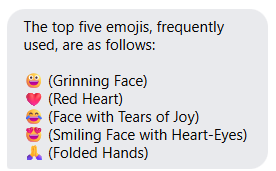
Agent Nodes can also be instructed to return
* Emojis
* Lists
**Basic Markdown:**
**Clickable Link:**
**Agent Nodes can be instructed to send Lists:**
**Agent Nodes can send Emojis:**
***
## Step 4: Voice Settings
**“Voice Settings”**, specifically a **dropdown field for selecting a model type**. Here’s what it means, step by step.
* **Dropdown options:**
* **Realtime Models**
* **Non‑Realtime Models**
This setting lets you choose **how voice processing should happen** in an application (typically speech recognition, voice generation, or conversational voice AI).
### 1. Realtime Models
The system is optimized for **live, low-latency voice interaction**. Audio is processed in real-time as the user speaks, making it ideal for conversations, voice assistants, and live calls. This setup is not intended for situations where one uploads audio files and waits for results.
For more information on Realtime Streaming refer to [this](/ixhc2/real-time-streaming-support.md) document
#### Audio Capabilities:
#### Accepts Audio Input (checked)
* The system **can receive spoken audio** from the user
* Example: microphone input during a live conversation
So, the Current setup = **Speech‑to‑Text only**, not Text‑to‑Speech
#### Language Configuration
This section controls **what languages the voice system supports**.
* **Languages** – Available spoken languages
* **Default** – The primary language used
* **Allowed** – Additional languages users can switch to
#### LLM-Settings (Language Model Configuration)
This section defines **which AI model handles the conversation and voice processing**.
1. **Vendor:** **OpenAI -**The underlying AI provider
2. **Model: GPT-Realtime** is a model tailored for **live voice interaction**. It excels at:
* Real-time understanding of spoken input
* Generating rapid responses
* Ideal for low-latency voice experiences.
3. **Transcription Model:** This controls **how speech is converted into text**.
Available options:
* gpt‑4o‑transcribe: Higher accuracy and slightly higher cost/latency
* gpt‑4o‑mini‑transcribe: Faster and cheaper and slightly lower accuracy
#### TTS-Settings
TTS (Text‑to‑Speech) Settings, specifically choosing which provider will convert text into spoken audio.
Vendor: This dropdown lets you select the **Text‑to‑Speech engine/provider** that will generate voice output when your system needs to “speak”.
The three options shown are **different TTS vendors**, each with distinct strengths.
* Azure OpenAI TTS
* Nuance Dragon / Neural TTS
* Eleven Labs
1. **Vendor:** Azure OpenAI TTS\
**Features:** Microsoft-hosted neural voices, secure, scalable, strong Azure integration, reliable for production\
**Recommended for:** Enterprise, internal tools, customer-facing assistants
1. **Model:** **gpt‑4o‑mini‑tts**
**Optimized for:**
* Fast response time
* Lower cost
* Natural‑sounding speech
**Trade‑off:**
* Slightly less expressive
Ideal for real‑time conversations and voice assistants.
2. **Voice:** **Alloy**
* Multiple voices are available.
* Officially supported.
* Safe for production use.

2. **Vendor:** Nuance Dragon/Neural TTS
**Overview:** Nuance offers enterprise and healthcare-grade TTS with a focus on clarity, accuracy, and correctness.
**Use Cases:**
* Healthcare and clinical systems
* Dictation and documentation tools
* Customer support with high-quality needs
* Compliance-heavy environments
1. **Model:** **Enhanced** \
**What it is:** Higher-quality neural TTS with better prosody, pacing, and pronunciation.\
**Characteristics:** Natural pauses, improved flow, clearer emphasis and intonation.\
**Best for:** User-facing systems, longer responses, professional or conversational experiences.\
Prioritizes voice quality over speed.
2. Model: **Neural**
1. **What it is**: A sophisticated text-to-speech system.
2. **Advantages**: Clear and consistent audio with lower delays and costs.
3. **Best for**: High-volume use, basic prompts, and confirmations.
4. **Drawbacks**: Limited expressiveness.
3. Voice \* → **Ava** is the selected voice persona.
1. A professional, neutral, easy‑to‑understand voice
2. Suitable for informational or instructional speech
3. **Vendor: Eleven Labs**\
**Provider**: Text-to-Speech\
**Specialty**: Expressive, realistic voices\
**Value**: Prioritizes natural sound and emotion\
**Use Cases**:
* AI companions
* Conversational assistants
* Narration and storytelling
* Consumer apps prioritizing voice quality
* [ ] **Model: eleven\_multilingual\_v2**
- **What it does**: High-quality TTS with multi-language support.
- **Best for**: Global/multilingual apps. Natural speech in multiple accents/languages.
- **Trade-offs**: Slightly higher latency and cost.
- Choose this for **language flexibility**.
* [ ] **Model:** eleven\_flash\_v2\_5
- **Purpose:** Very low latency, quick responses with fair voice quality
- **Ideal for:** Real-time talks, speed-critical voice assistants
- **Trade-offs:** Less emotional depth than turbo
- **Recommended when:** Speed over expressiveness
* [ ] **Model: eleven\_turbo\_v2\_5**
- **What it does:** High-quality, expressive model with rich tone, emotion, pacing, and emphasis.
- **Best for:** Storytelling, premium assistants, and emotionally rich responses.
- **Trade-offs:** Higher compute cost and slight delay compared to flash.
- Choose this if **voice quality is a priority**.
* [ ] **Voice:**
- Multiple voices are available.
- Officially supported.
- Fully compatible with selected models.
- Safe for production use.
4. **Comfort Prompt Settings:** Comfort Prompt Settings, which control what the system plays or says to the user while it is waiting, typically during short delays in a voice or call experience.
1. **Field: Comfort Promt**
1. Provide text or a URL (max 5000 characters), usually linking to audio (WAV/MP3) or other hosted content.\
**Purpose**: Plays during system response time to prevent user perception of a failed interaction.
2. **Field: Comfort Prompt Delay (ms):** `1000`
1. **Definition:** Delay before the comfort prompt starts.
2. **Unit:** Milliseconds (ms)
3. **Example:** `1000 ms` = 1 second delay
4. **Function:** If the main response isn't ready after 1 second, the comfort prompt initiates.
3. **Field:** Comfort Prompt Minimum Play (ms)
1. **Value:** `3000`
2. Sets the **minimum duration** for the comfort prompt to play. Plays for **at least 3 seconds,** even if the main response is ready sooner.
#### Let us understand about "Verified" check box
**Verified Voice Option**
The Verified checkbox in the TTS-Settings helps identify and filter voices that have been authenticated and approved by the TTS provider, such as Eleven Labs.
**What is a Verified Voice?**
A verified voice is a voice that has undergone an authenticity and ownership validation process by the provider. This helps ensure that the voice is legitimate, high quality, and compliant with the provider's policies.
**How Verification Typically Works**
When a voice is marked as Verified, the provider may have performed one or more of the following checks:
* Voice Ownership Verification: Confirms that the creator owns the voice or has permission to use it.
* Authenticity Validation: Ensures the voice matches the claimed speaker or source.
* Compliance Review: Verifies that the voice adheres to content, copyright, and consent policies.
* Quality Assessment: Evaluates audio quality, consistency, and usability.
**What Happens When the Verified Checkbox Is Enabled?**
**Verified Selected**
* Displays or allows only verified voices.
* Provides greater assurance of authenticity and ownership.
* Recommended for production, enterprise, and customer-facing deployments.
* Helps reduce risks associated with impersonation or unauthorized voice usage.
**What Happens When the Verified Checkbox Is Disabled?**
**Verified Not Selected**
* Both verified and non-verified voices may be available for selection.
* Allows access to community, custom, or unverified voices.
* Useful for testing, experimentation, or evaluating additional voice options.
* Voice quality, ownership validation, and compliance assurance may vary.
**Example from the Screenshot**
* **Vendor:** Eleven Labs
* **Model:** Eleven Turbo V2.5
* **Voice:** Adam Authentic & Engaging Conversationalist
* **Verified:** Enabled
**This indicates that the selected Adam voice is recognized as a verified voice by ElevenLabs and is considered a trusted, provider-approved option.**
**When Verified is disabled:** Both verified and non-verified voices may be available for selection.
For customer-facing voice bots and enterprise deployments, it is generally recommended to use Verified voices whenever possible. Verified voices provide higher confidence in authenticity, quality, compliance, and governance requirements.
{% hint style="info" %}
**Note:** Depending on the implementation, the Verified checkbox may function either as a **filter** that shows only verified voices or as a **status indicator** that identifies whether the selected voice is verified. The exact behavior is determined by the platform's integration with the TTS provider.
{% endhint %}
### 2. Realtime Models
### 1. Audio Capabilities
#### **Returns Audio Output** (checked)
* The system **speaks back** to the user.
* Responses are delivered as **audio**, using Text‑to‑Speech (TTS).
* This relies on your **TTS-Settings** (Azure, Nuance, ElevenLabs, etc.).
#### Language Configuration
This section controls **what languages the voice system supports**.
* **Languages** – Available spoken languages
* **Default** – The primary language used
* **Allowed** – Additional languages users can switch to
#### 2. LLM-Settings (Language Model Configuration)
This section defines **which AI model handles the conversation and voice processing**.
1. **Vendor:** **OpenAI -**The underlying AI provider
2. **Model: GPT-Realtime** is a model tailored for **live voice interaction**. It excels at:
* Real-time understanding of spoken input
* Generating rapid responses
* Ideal for low-latency voice experiences.
### 3. STT-Settings
Speech‑to‑Text controls **how spoken audio is converted into text** when the system listens to a user.
#### 1. Vendor: Azure OpenAI Speech-to-Text
Uses Azure OpenAI for speech recognition, sending audio to Azure-hosted transcription models.
**Benefits:**
* High accuracy
* Enterprise-grade security and scalability
* Strong real-time integration
**Note:** Required when "Accepts Audio Input" is active in Voice Settings. Suitable for real-time and batch transcription.
#### 2. Model
Transcription Model dropdown lets you choose **which speech‑to‑text model** converts audio into text.
Available models:
**Model 1: gpt-4o-transcribe**
* **What it is:** High-quality transcription, optimized for accuracy and context
* **Best for:** Conversational AI, customer support, noisy or complex environments
* **Trade-off:** Slightly higher cost/latency
* Choose for maximum accuracy.
**Model 2: gpt-4o-mini-transcribe**
* **What it is**: Fast, lightweight transcription
* **Best for**: Real-time assistants, high-volume/cost-sensitive scenarios, short commands
* **Trade-off**: Slightly less accurate
* Opt for when **speed and cost outweigh precision**.
**Model 3: Whisper**
* **What it is:** OpenAI's classic speech-to-text model with strong multilingual and accent support.
* **Best for:** Offline or batch transcription, audio file uploads, and older or broader language support.
* **Trade-off:** Slower than GPT-4 models; not optimized for low-latency real-time conversations.
* **Recommendation:** Use for file-based or non-real-time transcription.
Click 'Next' and move to next setting.
### Now let's look into the Non Real Time Audio Settings
### Non‑Realtime Models
This configuration is used when voice or language processing does NOT need to happen live. It’s meant for asynchronous or batch processing, not real‑time conversations.
#### Non‑Realtime Models Overview
**Description:** Processes requests after submission. Emphasizes accuracy, depth, and cost over latency.
**Features:**
* No streaming audio
* No instant interactions
**Use Cases:**
* Transcribing audio
* Batch processing
* Post-call voice analysis
* Offline AI tasks
* Text-only workflows
**Best for:** Situations where immediate response isn't needed.
### Language Configuration
**Language Settings**
* **Languages**: Supported languages
* **Default**: Primary language
* **Allowed**: Selectable languages
### LLM-Settings (Text Intelligence)
Controls **which large language model (LLM)** is used for understanding and generating responses.
**Vendor: OpenAI**
* OpenAI is providing the language model
* Used for reasoning, understanding, summarization, generation, etc.
**Model Options**
Choose from various OpenAI models:
* **gpt-4o-mini**
* **gpt-5**
* **gpt-5.1**
* **gpt-5.2**
* **gpt-5-mini**
**Model Features**
* Not for live voice
* Focus on reasoning, context, and quality
* Choose based on cost vs. intelligence needs
* Does not handle live voice
* Does not stream audio
{% hint style="info" %}
**Note: STT Settings, TTS Settings and Comfort Prompt Settings is same as explained above**
{% endhint %}
Click 'Next' and move to next setting.
***
## Step 5: **Data & Security**
This section controls **privacy, data protection, and access control** for the AI flow you’re configuring.
### Redact Personal Information
**Overview**: Automatically remove or hide Personal Identifiable Information (PII).
**Applicable to**:
* Logs
* Transcripts
* Stored interaction data
**Types of Data Typically Redacted**:
* Names
* Phone numbers
* Email addresses
* Account numbers
* Addresses
* Sensitive identifiers
**Importance**:
* Protects user privacy
* Ensures compliance with regulations (e.g., GDPR, HIPAA, SOC)
* Reduces risks of exposing sensitive information
* Recommended for production systems, customer support, and regulated environments.
To know more about PII Redaction, kindly refer to [this](/ixhc2/guardrails/pii-redaction-service.md).
### Share with the organization
**Accessibility and Visibility**
When enabled, this AI flow is accessible to all organization members:
* **View Configuration:** Users can examine how the AI flow is set up.
* **Reuse and Reference:** Depending on permissions, users can leverage the flow.
* **Collaborate:** Promote team efforts by allowing joint enhancements.
**Benefits**
* **Encourages Reuse and Standardization:** Minimizes redundant efforts.
* **Fosters Collaboration:** Enhances teamwork and sharing of ideas.
⚠️ Note: If disabled, access is restricted to specific users or kept private.
---
# Agent Instructions
This documentation is published with GitBook. GitBook is the documentation platform designed so that both humans and AI agents can read, navigate, and reason over technical content effectively. Learn more at gitbook.com.
## Querying This Documentation
If you need additional information that is not directly available in this page, you can query the documentation dynamically by asking a question.
Perform an HTTP GET request on the current page URL with the `ask` query parameter, and the optional `goal` query parameter:
```
GET https://docs.ixhello.com/ixhc2/unified-persona-controls-global-persona-setup.md?ask=&goal=
```
`ask` is the immediate question: it should be specific, self-contained, and written in natural language.
`goal` is optional and describes the broader end goal you are ultimately trying to accomplish on behalf of the user. GitBook uses it to tailor the answer towards what is most useful for that goal.
The response will contain a direct answer to the question and relevant excerpts and sources from the documentation.
Use this mechanism when the answer is not explicitly present in the current page, you need clarification or additional context, or you want to retrieve related documentation sections.