> For the complete documentation index, see [llms.txt](https://docs.ixhello.com/llms.txt). Markdown versions of documentation pages are available by appending `.md` to page URLs; this page is available as [Markdown](https://docs.ixhello.com/ixhc/connections/zendesk-integration/create-a-custom-app.md).
# Create a Custom App
### Prerequisites:
The following shows the general steps/activities that will be carried out in setting up this integration. **Note:** It is advisable to use same E-Mail for signup across the 3 channels below. Step 1 -3 below are compulsory.
1. [Sign up for Zendesk account](/ixhc/connections/zendesk-integration.md) (Part of pre-requisites)
2. [Sign up for iX Hello platform](https://bots.ixhhello.com) (Part of pre-requisites)
3. [Create a custom app in iX Hello.](/ixhc/general/ix-hello-studio-mode.md)
4. Publish the app
5. Test the Amazon Lex app.
### Let's Create a Custom App:
1. Fill following details in the Add Custom window and click ‘Save’.
1. **Name:** Zendesk Assistant
2. **Custom Skill Type:** Search
3. Set this app as the Gen AI-App
4. Click Save
#### Create Data Source:
In the top menu tabs, select “Data Sources” then “Create New Data Source”. Provide the following details:
#### DataSource 1: Gen AI
Name: GenAIZendeskAssitant-DS
Integration Configuration: Gen AI
Click: Save
#### DataSource 2: Zendesk
Name: ZendeskAssit-DS
Integration Configuration: Gen AI
Click: Save
## Create Methods to fetch the data from Zendesk
1. Next step is to create Methods. Methods allows you to fetch data from Zendesk. The Zendesk supported custom queries can be used to define the data to be fetched from the linked Zendesk account.
2. iX Hello platform currently supports following Zendesk methods:
1. AssignTicketToGroup
2. DeleteTicket
3. GetPendingTickets
4. GetSolvedTickets
5. GetGroups
6. GetOpenTickets
7. GetTicketById
8. GetTicketsByUser
9. GetNewTickets
10. GetTicketsByType
11. GetTicketsByPriority
12. GetClosedTickets
13. AssignTicketToUser
14. CreateTicket
15. GetAllTickets
16. UpdateTicket
3. For this document, we’ll create only few methods. Users can refer to the appendix to explore all other supported methods.
### Method 1: createNewTicketMethod
This method requires three parameters. Please review the information below.
#### Parameters:
| Subject | {{Subject}} |
| ----------------- | ----------------------------------------------------------------------- |
| TicketDescription | Issue with Laptop |
| ItemData | {"Type": "{{Type}}", "Priority":"{{Priority}}", "Status": "{{Status}}"} |
Other than these parameters, provide following standard inputs:
| Method Name | You can give any name. This name will be displayed in the methods list. **createNewTicketMethod** |
| --------------------- | ------------------------------------------------------------------------------------------------------------------------------------------------------------------------------------------------------------------------------------------------------------------------------------------------------------ |
| Request Type |
Create Ticket
This is the method that you are using
|
| Parameters | As explained in the previous table |
| Result Type |
Records (Auto Selected)
It indicates that the method can return one or more records
|
| Record JsonPath |
Each method returns data in Json format and to pick any specific information from the json, we need to specify the Record JsonPath so iX Hello platform will pick that data in consideration while displaying results.
Example: $
This selects all the records that is returned.
|
| Empty Result Template |
When the method does not return any data, this response will be generated. So, we can specify something like:
{{Records}}
|
| Valid Result Template | {{Records}} |
#### Sample Response:
### Method 2: getAllTicketsMethod
| Method Name | You can give any name. This name will be displayed in the methods list. **getAllTicketsMethod** |
| --------------------- | ------------------------------------------------------------------------------------------------------------------------------------------------------------------------------------------------------------------------------------------------------------------------------------------------------------------ |
| Request Type |
GetALLTickets
This is the method that you are using
|
| Parameters | No Parameter |
| Result Type |
ListOfRecords (Auto Selected)
It indicates that the method can return one or more records
|
| Record Limit |
Numeric value (e.g. 10)
If Method is returning larger number of records, then you can limit this result by providing this value.
|
| Record JsonPath |
Each method returns data in Json format and to pick any specific information from the json, we need to specify the Record JsonPath so iX Hello platform will pick that data in consideration while displaying results.
Example: $.\[\*]
This selects all the records that is returned.
|
| Empty Result Template | Sorry... No Record found |
| Valid Result Template | {{Records}} |
| Record Template | ID: {{id}}, Subject:{{subject}}, Description: {{description}}, Type: {{type}}, Priority:{{priority}}, Status: {{status}} |
#### Sample Response:
### Method 3: updateTicketMethod
This method requires three parameters. Please review the information below.
#### Parameters:
| ID | {{TicketId}} |
| -------- | ----------------------------------------------------------------------- |
| ItemData | {"Type": "{{Type}}", "Priority":"{{Priority}}", "Status": "{{Status}}"} |
Other than these parameters, provide following standard inputs:
| Method Name | You can give any name. This name will be displayed in the methods list. **updateTicketMethod** |
| --------------------- | ------------------------------------------------------------------------------------------------------------------------------------------------------------------------------------------------------------------------------------------------------------------------------------------------------------------ |
| Request Type |
Update Ticket
This is the method that you are using
|
| Parameters | No Parameter |
| Result Type |
Records (Auto Selected)
It indicates that the method can return one or more records
|
| Record JsonPath |
Each method returns data in Json format and to pick any specific information from the json, we need to specify the Record JsonPath so iX Hello platform will pick that data in consideration while displaying results.
Example: $.\[\*]
This selects all the records that is returned.
|
| Empty Result Template | {{Records}} |
| Valid Result Template | {{Records}} |
#### Sample Response
### Method 4: getClosedStatusTicketsMethod
| Method Name | You can give any name. This name will be displayed in the methods list. **getClosedStatusTicketsMethod** |
| --------------------- | ------------------------------------------------------------------------------------------------------------------------------------------------------------------------------------------------------------------------------------------------------------------------------------------------------------------ |
| Request Type |
GetClosedTickets
This is the method that you are using
|
| Parameters | No Parameter |
| Result Type |
ListOfRecords (Auto Selected)
It indicates that the method can return one or more records
|
| Record Limit |
Numeric value (e.g. 10)
If Method is returning larger number of records, then you can limit this result by providing this value.
|
| Record JsonPath |
Each method returns data in Json format and to pick any specific information from the json, we need to specify the Record JsonPath so iX Hello platform will pick that data in consideration while displaying results.
Example: $.\[\*]
This selects all the records that is returned.
|
| Empty Result Template | Sorry... No Record found |
| Valid Result Template | {{Records}} |
| Record Template | ID:{{id}}, Subject:{{subject}}, Description:{{description}}, Type:{{type}}, Priority:{{priority}}, Status:{{status}} |
#### Sample Response
### Method 5: getPendingStatusTicketsMethods
| Method Name | You can give any name. This name will be displayed in the methods list. **getPendingStatusTicketsMethods** |
| --------------------- | ------------------------------------------------------------------------------------------------------------------------------------------------------------------------------------------------------------------------------------------------------------------------------------------------------------------ |
| Request Type |
GetPendingTickets
This is the method that you are using
|
| Parameters | No Parameter |
| Result Type |
ListOfRecords (Auto Selected)
It indicates that the method can return one or more records
|
| Record Limit |
Numeric value (e.g. 10)
If Method is returning larger number of records, then you can limit this result by providing this value.
|
| Record JsonPath |
Each method returns data in Json format and to pick any specific information from the json, we need to specify the Record JsonPath so iX Hello platform will pick that data in consideration while displaying results.
Example: $.\[\*]
This selects all the records that is returned.
|
| Empty Result Template | Sorry... No Record found |
| Valid Result Template | {{Records}} |
| Record Template | ID:{{id}}, Subject:{{subject}}, Description:{{description}}, Type:{{type}}, Priority:{{priority}}, Status:{{status}} |
#### Sample Response
### Method 6: getOpenStatusTicketsMethod
| Method Name | You can give any name. This name will be displayed in the methods list. **getOpenStatusTicketsMethod** |
| --------------------- | ------------------------------------------------------------------------------------------------------------------------------------------------------------------------------------------------------------------------------------------------------------------------------------------------------------------ |
| Request Type |
GetOpenTickets
This is the method that you are using
|
| Parameters | No Parameter |
| Result Type |
ListOfRecords (Auto Selected)
It indicates that the method can return one or more records
|
| Record Limit |
Numeric value (e.g. 10)
If Method is returning larger number of records, then you can limit this result by providing this value.
|
| Record JsonPath |
Each method returns data in Json format and to pick any specific information from the json, we need to specify the Record JsonPath so iX Hello platform will pick that data in consideration while displaying results.
Example: $.\[\*]
This selects all the records that is returned.
|
| Empty Result Template | Sorry... No Record found |
| Valid Result Template | {{Records}} |
| Record Template | ID:{{id}}, Subject:{{subject}}, Description:{{description}}, Type:{{type}}, Priority:{{priority}}, Status:{{status}} |
#### Sample Response
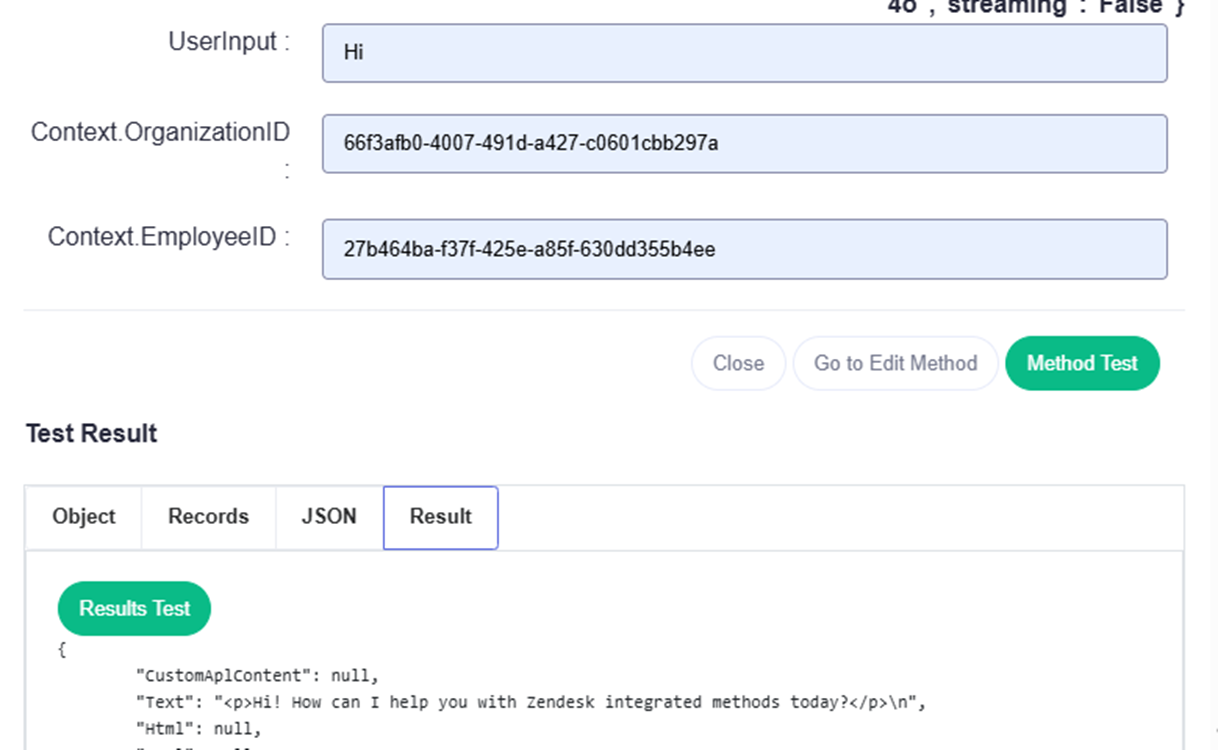
### Method 7: Gen AI
* Name: Chat Completion RAG
* Request Type: chatcompletion-rag
* Parameters
* Model: Select your preferred Generative AI model (e.g., Azure gpt-4o).
* System Message: Provide instructions for the bot’s behavior:
* *This is a sample prompt/system message, this can be configured as per the use case need.*
{% code overflow="wrap" %}
```
I am a concise and focused assistant, providing accurate information based solely on the provided Zendesk integrated methods. I aim to deliver clear and relevant answers to your queries from the Zendesk integrated methods.
```
{% endcode %}
* UserQuestion: {{UserInput}}
* Streaming: False
* SessionTime: 10
* OrganizationID: {{Context.OrganizationID}}
* EmployeeID: {{Context.OrganizationID}}
Configure Method Output:
* Result Type: ListofRecords
* Record Limit: 10
* Configure Method Result:
* Record JsonPath: $.choices\[0].message
* Valid Result Template: {{Records}}
* Record Template: {{content}}
* Empty Result Template: "Is there anything else I can assist you with?"
* Uncheck: Automatically prompt for next question
* Save & Test
* Click Save & Test. This will initiate a test API call.
#### Sample Response
### Create New Intent
1. Click Create New Intent.
2. Enter Intent Details as Follows:
| Name | CreateNewTicketIntent |
| -------------------------- | ----------------------------- |
| Intent Type | Search |
| Intent Action | Execute Method |
| Data Source | ZendeskAssist-DS |
| Data Source Method | CreateNewTicketMethod |
| Dialog Delegation Strategy | Fallback To Skill |
| Action | Save the intent configuration |
#### Similarly Create the Intents for rest of the Methods created:
* getAllTicketsMethod - getAllTicketsDetailsIntent
* updateTicketMethod - UpdateTicketIntent
* getClosedStatusTicketsMethod - getClosedStatusTicketsIntent
* getPendingStatusTicketsMethods - getPendingStatusTicketsIntent
* getOpenStatusTicketsMethod - getOpenStatusTicketsIntent
* GenAIZendeskAssist-DS - chatIntent
### Slot Creation
Slot Creation Steps for Generative AI and ZendDesk
#### Slot: CreateNewTicketIntent
Parameter 1: Subject
Parameter 2 : Description
Parameter 3: Type
Parameter 4: Priority
Parameter 5: Status
| Name | Subject | Description | Type | Priority | Status |
| ---------------------------- | --------------------------------------------------------------------------------------------------------------------------- | ------------------------------------------------------- | ------------------------------------------------------- | ------------------------------------------------------- | ------------------------------------------------------- |
| Description | Subject | Description | Type | Priority | Status |
| Slot Order (Sequence Number) | 0 | 1 | 2 | 3 | 4 |
| Reprompt Message | (Its a message that the use will be asked when the slot can not be retrieved in an utterance) Please provide ticket subject | Please provide ticket description | Please provide ticket Type | Please provide ticket Priority | Please provide ticket Status |
| Type | Text | Text | Text | Text | Text |
| Custom App | Zendesk Assistant\_d9ca9e96-4410-472b-9769-8a94c58067df | Zendesk Assistant\_d9ca9e96-4410-472b-9769-8a94c58067df | Zendesk Assistant\_d9ca9e96-4410-472b-9769-8a94c58067df | Zendesk Assistant\_d9ca9e96-4410-472b-9769-8a94c58067df | Zendesk Assistant\_d9ca9e96-4410-472b-9769-8a94c58067df |
| Intent | CreateNewTicketIntent | CreateNewTicketIntent | CreateNewTicketIntent | CreateNewTicketIntent | CreateNewTicketIntent |
| Enable | Is Required | Is Required | Is Required | Is Required | Is Required |
| Action | Save the intent configuration | Save the intent configuration | Save the intent configuration | Save the intent configuration | Save the intent configuration |
**Create rest of the slots as per the parameters suggested.**
### Utterance
1. Navigate to Utterances
* In your Custom App, go to the Utterances tab.
Create New Utterance: Enter Intent Details as Follows:
**Create rest of the Utterances as per the Intents created.**
### Input Configuration
1. For Generative AI Intent
* Navigate to Input Configuration
* In your Custom App, go to the Input Configuration tab.
#### Input Parameter Configuration
These parameters are created if and only if the method parameter exists to each methods created.
**Input Parameter Creation for: CreateNewTicketInput**
| Search Parameter Name | Subject | Description | Type | Priority | Status |
| --------------------- | ----------------------------- | ----------------------------- | ----------------------------- | ----------------------------- | ----------------------------- |
| Data Type | Text | Text | Text | Text | Text |
| Description | Subject | Description | Type | Priority | Status |
| Method Parameter | Subject | Description | Type | Priority | Status |
| Action | Save the intent configuration | Save the intent configuration | Save the intent configuration | Save the intent configuration | Save the intent configuration |
## Test the App
Click on the three dots under "Action." A dropdown menu will appear; select the "Test" option to test the application.
Click the "Test" option to access the chat widget. Here, you'll see the bot's name and a welcome message, allowing you to start your conversation with the bot.
Congratulations! You have successfully completed building a custom app using Zendesk.
---
# Agent Instructions
This documentation is published with GitBook. GitBook is the documentation platform designed so that both humans and AI agents can read, navigate, and reason over technical content effectively. Learn more at gitbook.com.
## Querying This Documentation
If you need additional information that is not directly available in this page, you can query the documentation dynamically by asking a question.
Perform an HTTP GET request on the current page URL with the `ask` query parameter, and the optional `goal` query parameter:
```
GET https://docs.ixhello.com/ixhc/connections/zendesk-integration/create-a-custom-app.md?ask=&goal=
```
`ask` is the immediate question: it should be specific, self-contained, and written in natural language.
`goal` is optional and describes the broader end goal you are ultimately trying to accomplish on behalf of the user. GitBook uses it to tailor the answer towards what is most useful for that goal.
The response will contain a direct answer to the question and relevant excerpts and sources from the documentation.
Use this mechanism when the answer is not explicitly present in the current page, you need clarification or additional context, or you want to retrieve related documentation sections.