> For the complete documentation index, see [llms.txt](https://docs.ixhello.com/llms.txt). Markdown versions of documentation pages are available by appending `.md` to page URLs; this page is available as [Markdown](https://docs.ixhello.com/ixhc/general/rag-file-upload/sharepoint-integration-rag-assistant-using-quick-start-app.md).
# SharePoint Integration RAG Assistant using Quick Start App
### Step 1 : Prerequisites
* **An iX Hello Account** For steps to [create an iX Hello account,](/ixhc/general/ix-hello-create-account.md) follow the steps at
* Use this link to [Sign up for iX Hello platform](https://bots.ixhello.com/Account/Login?ReturnUrl=%2F).
* To create an APP using Quick Start App refer to [this](/ixhc/general/rag-file-upload/file-upload-in-studio-mode-1/quick-start-apps.md)
### Step 2: Creation of SharePoint RAG Assistant using Quick Start App
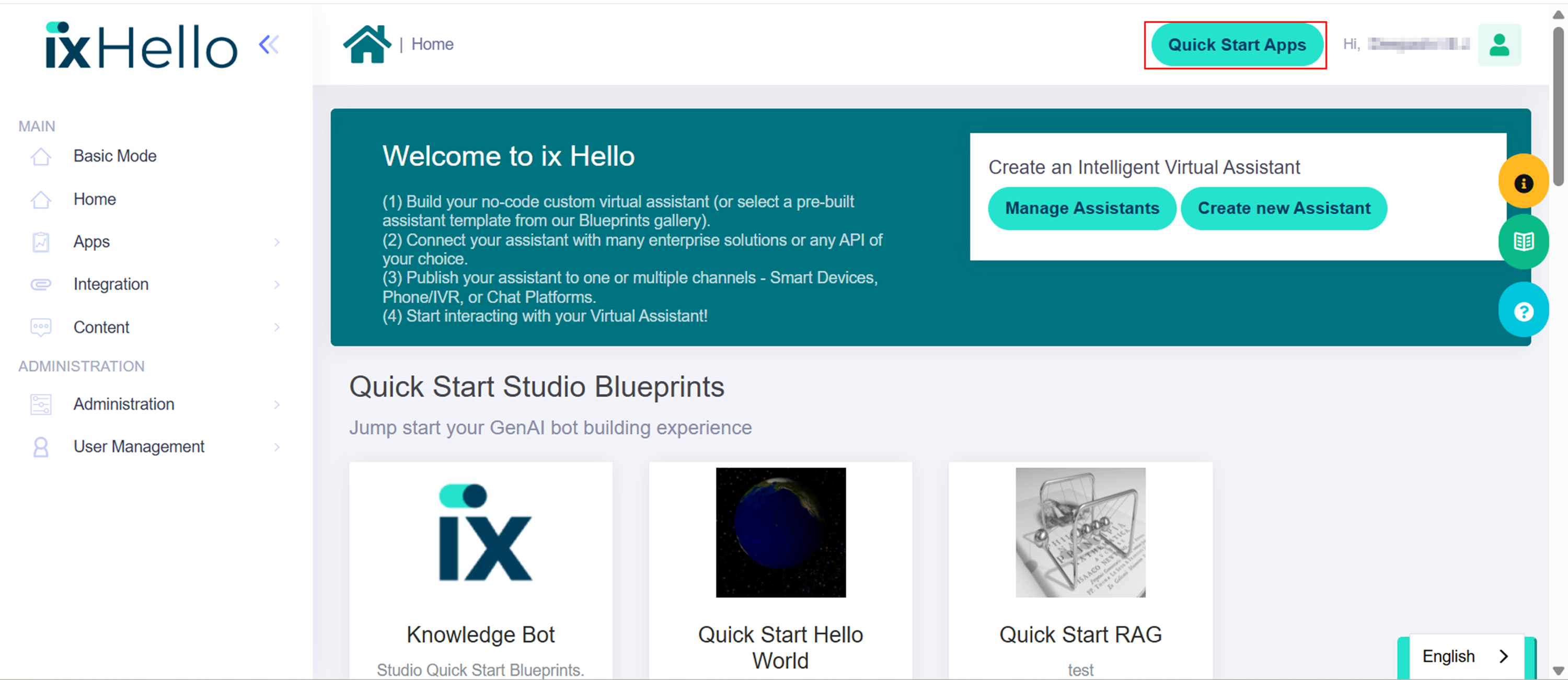
1. Click on the Quick Start Apps which is a fixed button is accessible in Studio Mode and appears on all pages and menu items.
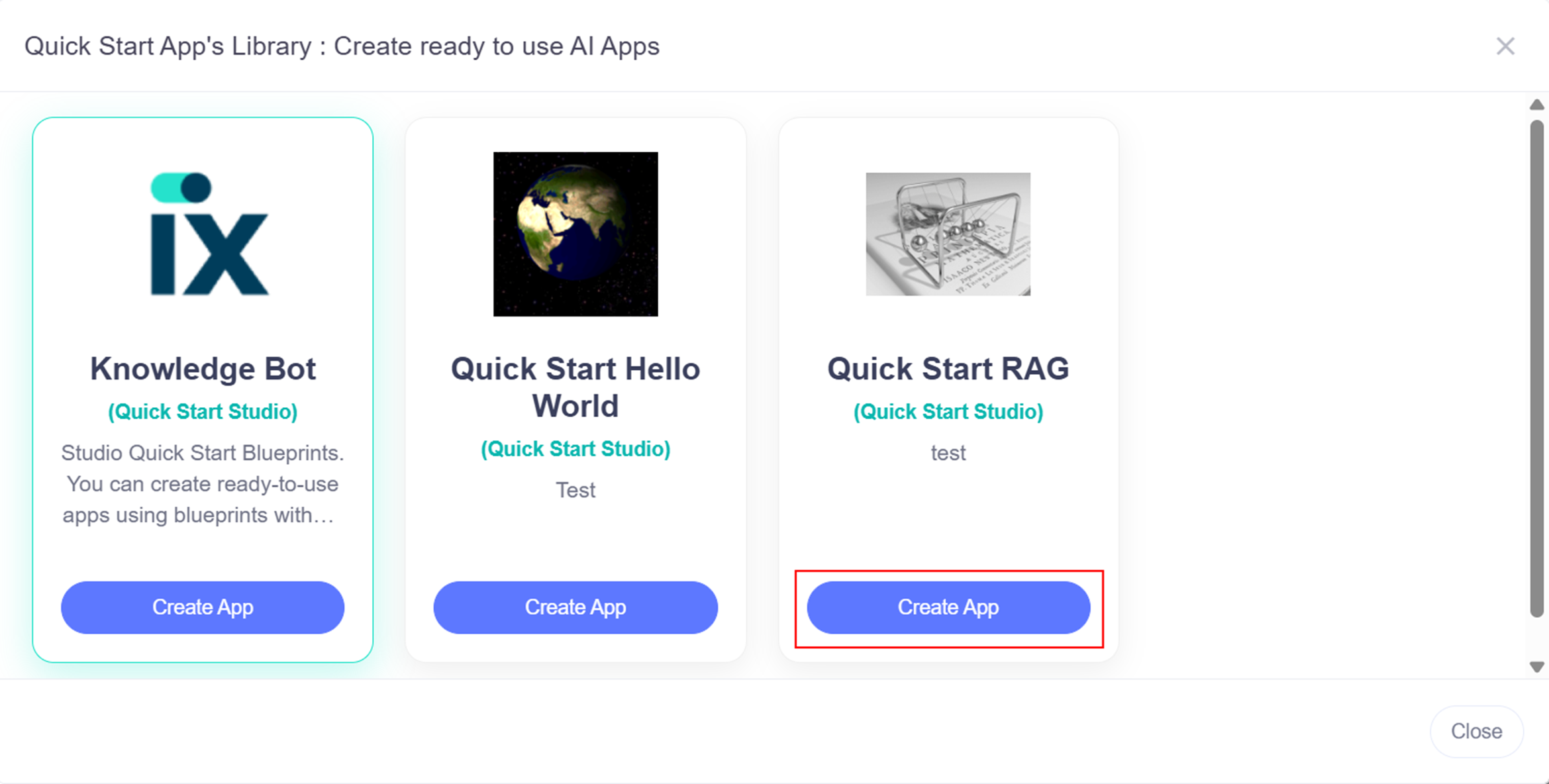
2. To create a new assistant using the Add a New Assistant button and choose Quick RAG-App.
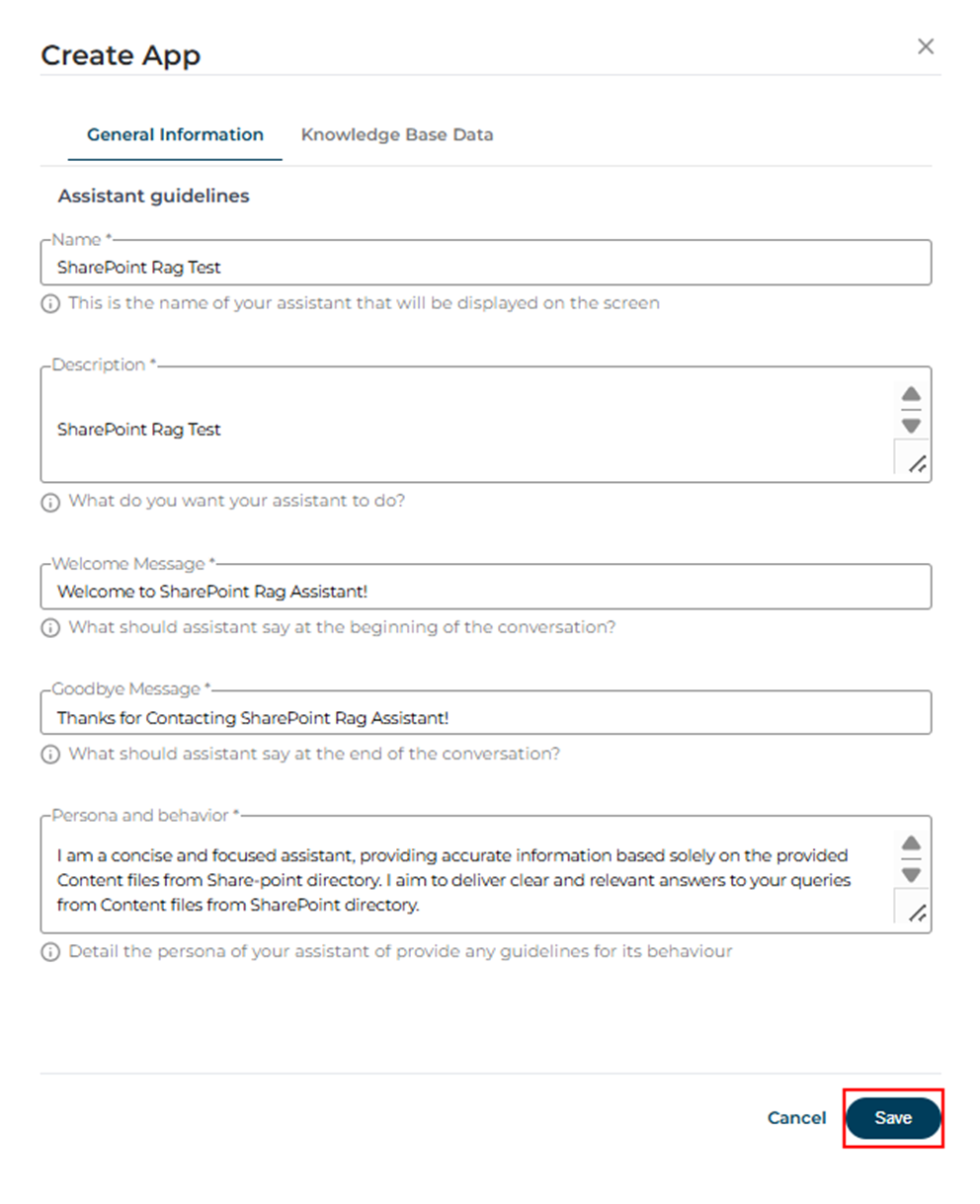
3. Fill out the Configuration screen of General Information Tab
4. The table below explains each of the inputs shown on this screen.
| Input | Information |
| -------------------- | ---------------------------------------------------------------------------------------------------------------------------------------------------------------------------------------------------------------------------------------------------------------------------------------------------------------------------------------- |
| Name |
This is the display name of the assistant.
For Ex: SharePoint Rag Test
|
| Description |
Explains what the assistant is designed to do.
For Ex: SharePoint Rag Test
|
| Welcome Message | This is the first message the assistant sends when a conversation starts. |
| Goodbye Message | This is the closing message when the conversation ends. |
| Persona and Behavior |
Defines the assistant’s tone, personality, and response style.
For Ex: I am a concise and focused assistant, providing accurate information based solely on the provided Content files from SharePoint directory. I aim to deliver clear and relevant answers to your queries from Content files from SharePoint directory.
|
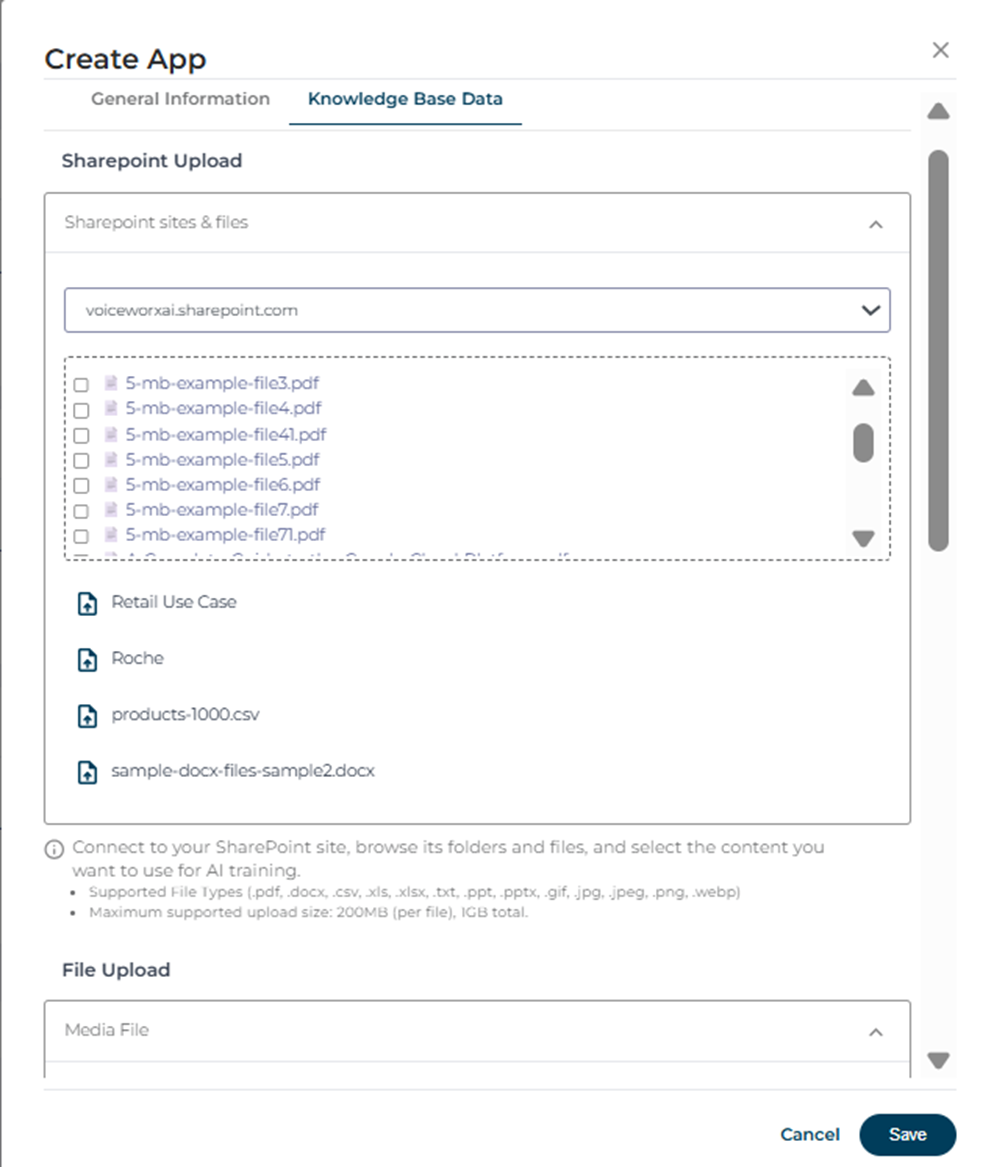
5. Fill out the Configuration screen of Knowledge Base Data Tab
| Input | Information |
| ------------------------- | --------------------------------------------------------------------------------------------------------------------------------------------------------------------------------------------------------------------------------------------------------------------------------------------------------------------------------------------------------------------------------------------------------- |
| SharePoint Upload Section | Displays files and folders from the selected SharePoint site. |
| Instructional Text |
Connect to SharePoint, browse folders/files, and select content for AI training.
|
| Action Buttons | Click Save Button to save all the information updated. |
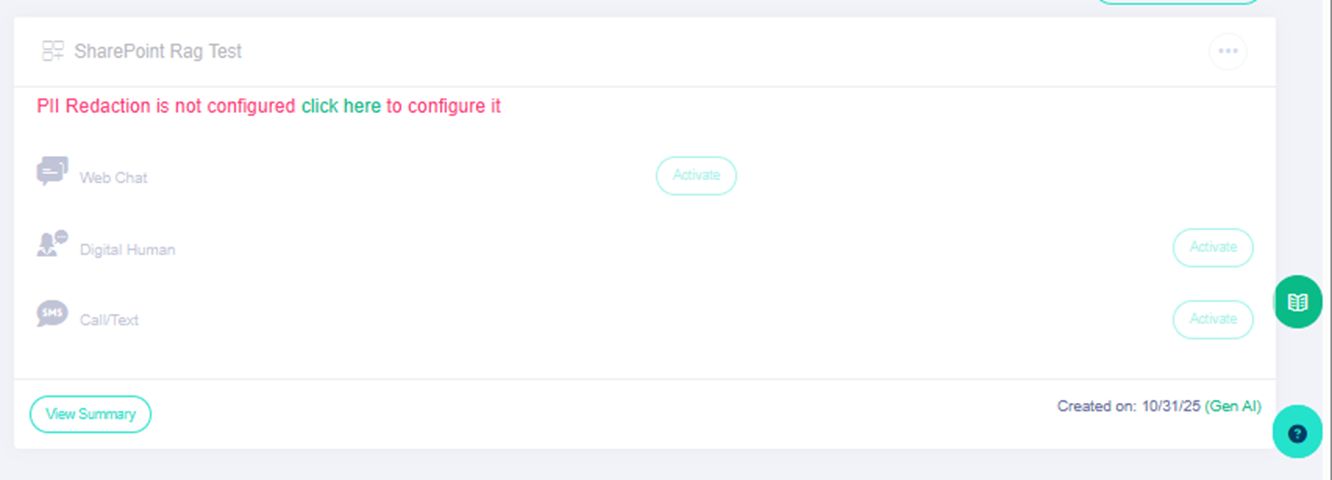
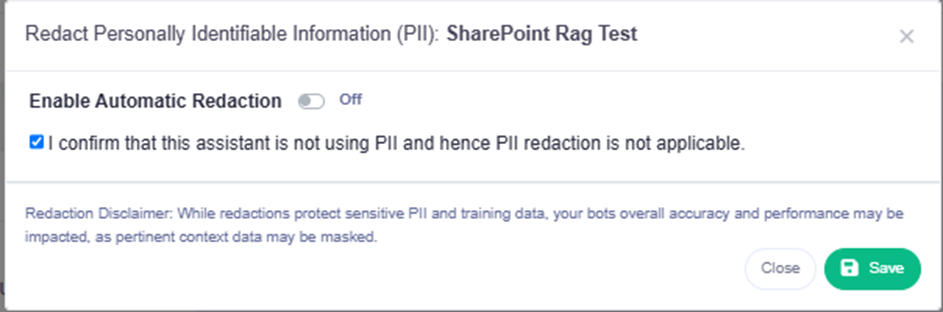
6. The bot created will appear under My Assistant and enable the PII Redaction by clicking on the warning "Click Here" and hit the Save button on the pop-up.
1. To know more on PII Redaction refer to [PII-Management](/ixhc/general/pii-management.md)
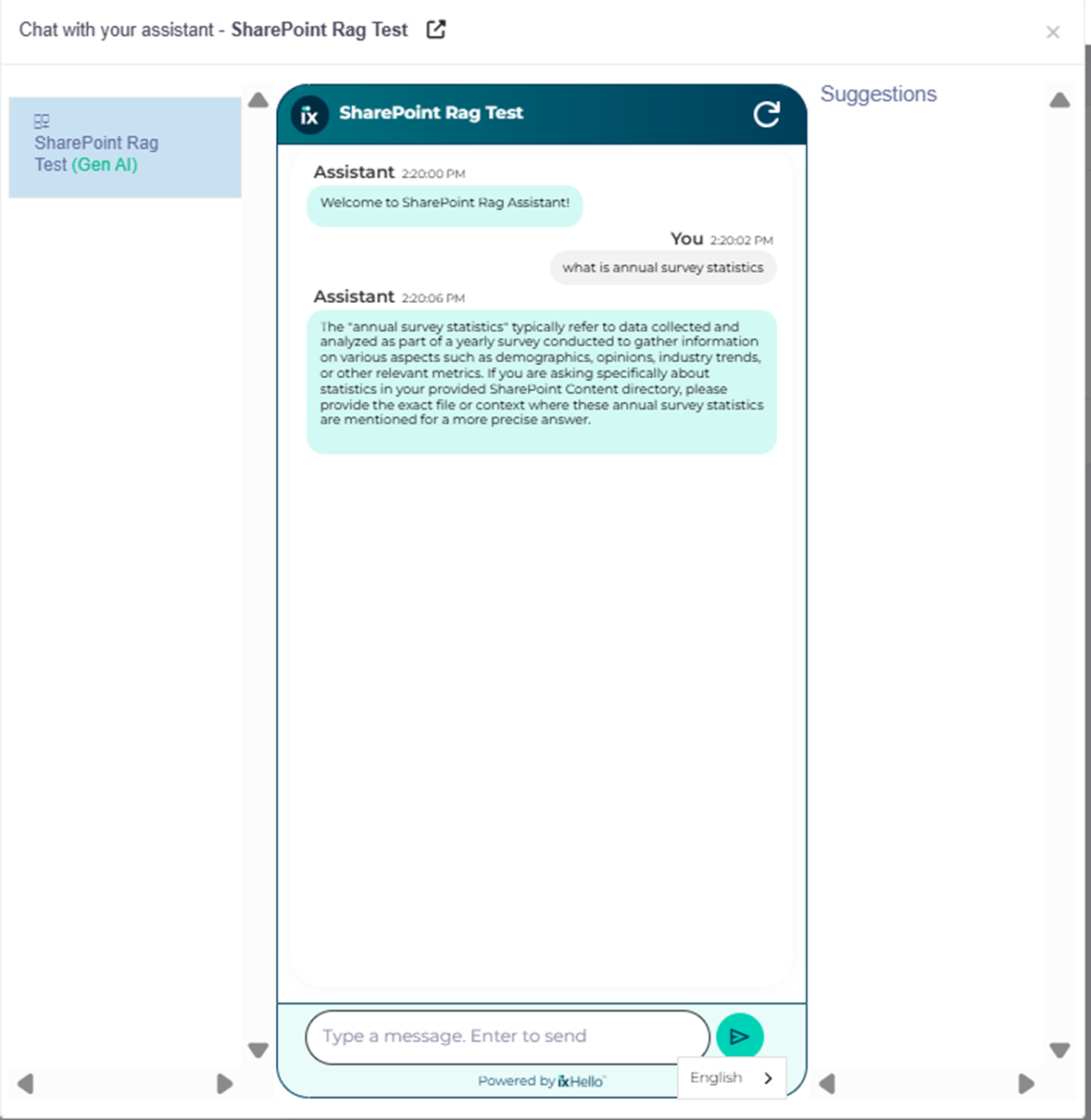
7. Click on "Activate" button to activate the bot. You can click on "Chat Now" and start the conversation with the bot created.
8. Based on the content in the file, which is uploaded, you can query the bot accordingly:
Congratulations you have successfully completed building a SharePoint RAG App using Quick Start Apps.
---
# Agent Instructions
This documentation is published with GitBook. GitBook is the documentation platform designed so that both humans and AI agents can read, navigate, and reason over technical content effectively. Learn more at gitbook.com.
## Querying This Documentation
If you need additional information that is not directly available in this page, you can query the documentation dynamically by asking a question.
Perform an HTTP GET request on the current page URL with the `ask` query parameter, and the optional `goal` query parameter:
```
GET https://docs.ixhello.com/ixhc/general/rag-file-upload/sharepoint-integration-rag-assistant-using-quick-start-app.md?ask=&goal=
```
`ask` is the immediate question: it should be specific, self-contained, and written in natural language.
`goal` is optional and describes the broader end goal you are ultimately trying to accomplish on behalf of the user. GitBook uses it to tailor the answer towards what is most useful for that goal.
The response will contain a direct answer to the question and relevant excerpts and sources from the documentation.
Use this mechanism when the answer is not explicitly present in the current page, you need clarification or additional context, or you want to retrieve related documentation sections.